Physical Address
304 North Cardinal St.
Dorchester Center, MA 02124
Physical Address
304 North Cardinal St.
Dorchester Center, MA 02124

Find the best powered USB hubs for your desktop or laptop setup. Our picks cover 4 to 16 ports, fast charging, and USB 3.2 speeds for every need.
You have a modern laptop with two USB-C ports, a half-dozen peripherals, and a growing pile of flash drives, card readers, and charging cables. The math doesn't work. An unpowered hub can't deliver enough juice to keep an external drive alive, let alone charge your phone while you sync. A powered USB hub brings its own AC adapter, so every connected device gets the stable power it needs, and your laptop's limited bus isn't overloaded. The best powered USB hubs in 2026 range from compact four-port models to heavy-duty 16-port towers capable of handling an entire production desk. We sorted through the options to find the ones that actually deliver on speed, build, and usability.
If you're also refreshing your display setup, our roundup of the best USB-C monitors covers models that pair well with a good hub. And for expanding wireless connectivity, we have a guide to the best Bluetooth dongles if your computer lacks built-in support.
TL;DR: The TP-Link UH720 is the best all-round pick: reliable, well-priced, and offers a good mix of data and charging ports. The SABRENT HB-BU10 is the go-to for power users who need 10 data ports with individual switches. The intpw 9-Port USB 3.2 Hub delivers the fastest 10Gbps transfer speeds and a sleek angled design. The ACASIS 16-Port USB 3.2 Hub is the ultimate solution for pro setups needing both USB-A and USB-C 3.2 at high speed.
| # | Product | Ports | Data Speed | Individual Switches | Best For |
|---|---|---|---|---|---|
| 1 | TP-Link UH720 | 7 USB 3.0 + 2 charging | 5Gbps | No (master power) | The reliable desk companion for most users |
| 2 | SABRENT HB-BU10 | 10 USB 3.0 | 5Gbps | Yes, with LEDs | Heavy data users and peripheral-heavy setups |
| 3 | intpw 9-Port USB 3.2 | 7 data (3x USB-C 3.2, 4x USB 3.0) + 2 PD charging | 10Gbps (USB 3.2) | No | Fast file transfers and modern laptops |
| 4 | UGREEN 7-Port | 7 USB 3.0 (4 smart charging) | 5Gbps | Yes, with LEDs | Mixed use with frequent device charging |
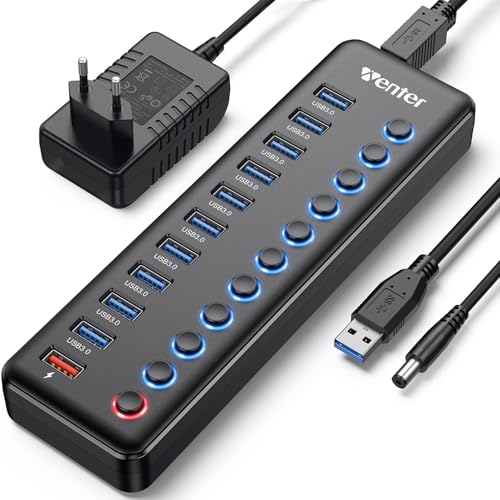
| 5 | Wenter 11-Port | 10 USB 3.0 + 1 smart charging | 5Gbps | Yes, with LEDs | Lots of peripherals and long cable runs |
| 6 | Atolla 8-Port | 7 USB 3.0 + 1 smart charging | 5Gbps | Yes, with LEDs | Balanced port count and budget-friendly |
| 7 | ONFINIO 10-Port | 10 USB 3.0 | 5Gbps | Yes, with LEDs | Getting maximum ports at a low entry point |
| 8 | SABRENT 4-Port (HB-UMP3) | 4 USB 3.0 | 5Gbps | Yes, with LEDs | Clean minimal expansion for a laptop bag |
| 9 | Atolla 4-Port | 4 USB 3.0 + 1 smart charging | 5Gbps | Yes, with LEDs | Compact desk setup with one charging port |
| 10 | ACASIS 16-Port | 8 USB-A 3.2 + 8 USB-C 3.2 | 10Gbps | Yes, independent switches | Professional studios and server rooms |

Pros
Cons
Best for The person who wants a proven, well-supported hub that handles seven data devices and two fast chargers without drama.
Check current price on Amazon →
The TP-Link UH720 has been a staple in this category for years, and for good reason. It's the kind of product that gets out of your way. The nine ports are split into seven USB 3.0 data ports and two dedicated charging ports that output up to 2.4A each, intelligently detecting what's connected to deliver full speed. The 12V/4A power adapter provides enough headroom to keep an external SSD, a card reader, and a wireless mouse receiver all running while simultaneously fast-charging a tablet. It's the most balanced hub on this list for a typical home office: you don't get individual switches, but the master power button with a built-in surge protector gives you peace of mind during storms. TP-Link's two-year warranty and cross-platform compatibility (it even works with Chrome OS and Linux) make it a boringly excellent choice — and sometimes boring is exactly what you want from infrastructure.

Pros
Cons
Best for Anyone running an external drive array, multiple printers, or a full peripheral desk where individual port control saves constant plugging and unplugging.
Check current price on Amazon →
The SABRENT HB-BU10 is the hub you reach for when "I need more ports" becomes "I need to manage a small data center on my desk." Each of the ten USB 3.0 ports has a clicky switch and a blue LED, so you can power-cycle a misbehaving external hard drive without touching the cable. The 60W power adapter is overkill for most setups, but that headroom means you can connect seven or eight bus-powered USB drives simultaneously without dropouts — something many cheaper hubs cannot do. The mirrored surface looks sharp when clean but is a dust magnet. The port spacing is the one real ergonomic weakness: chunky USB cables with large hoods can block adjacent ports. If you primarily use standard cables and flash drives, it's a non-issue. For the raw port count, individual switching, and clean data throughput, this is the heavy lifter of the list.

Pros
Cons
Best for Video editors, photographers, and power users who need 10Gbps file transfers from NVMe SSDs and want to charge their phone or tablet at full speed.
Check current price on Amazon →
The intpw hub stands out by being the only hub here that includes USB 3.2 Gen 2 ports. That means up to 10Gbps for compatible SSDs — roughly double what a standard USB 3.0 hub can do. It's a genuine difference if you regularly move 4K video files or large RAW photo libraries. The triangular, angled aluminum body is a thoughtful design: it tilts the ports toward you at about 32 degrees, making it easier to plug and unplug cables that are often tight. The two 45W PD charging ports are a nice bonus for topping up a modern smartphone or tablet, though they are strictly power-only. The 65W AC adapter supplies plenty of total power. One limitation: the manufacturer advises against running multiple SSDs at full speed simultaneously, as the hub's internal bandwidth can become a bottleneck. It's not a problem for mixed-use setups (one SSD + keyboard + mouse + printer), but this hub is not a multi-drive RAID workstation.

Pros
Cons
Best for Someone who wants a tidy, switchable hub for a mix of data devices and everyday phone/tablet charging.
Check current price on Amazon →
UGREEN has a reputation for accessories that feel tougher than the price suggests, and this 7-port hub fits that mold. The standout feature is how it handles charging: four of the seven ports are intelligently managed to detect the connected device and deliver the optimal charging protocol. That means you can plug an iPhone, an Android phone, a pair of wireless earbuds, and a USB desk fan into the same hub and each gets appropriate power, all while the remaining three data ports handle a keyboard, mouse, and flash drive. The individual on/off switches are satisfyingly tactile. The 12V/2A adapter is adequate but not overkill — it'll handle the mix well, but you wouldn't want to chain multiple bus-powered external drives. UGREEN doesn't include a USB-C port, so it's strictly a USB-A world here. For a desk where charging and data coexist gracefully, this is one of the most thoughtfully arranged options.
Pros
Cons
Best for Users who need the maximum number of simultaneous USB connections and want individual control over each device, especially if your desk layout requires long cable reach.
Check current price on Amazon →
The Wenter hub is a port-count champion in this roundup. Ten data ports plus a smart charging port means you can have a full kit of peripherals — mouse, keyboard, printer, card reader, two external drives, webcam, headset dongle, phone cable, and a controller — all connected at once, with one port left over. The individual switches let you isolate a drive before unplugging it without yanking cords. The included cables are longer than average (the power cable is 5 feet, the USB cable is 3.3 feet), which matters if your tower is under the desk or your outlet is awkwardly placed. The 12V/3A adapter delivers 36W total, enough for most combinations of peripherals. The downsides are mostly about feel: the all-plastic chassis is lightweight but doesn't inspire the same confidence as an aluminum enclosure. Also, the dedicated charging port is convenient, but it's just one, so you can't charge multiple devices at high speed simultaneously.

Pros
Cons
Best for A clean, controlled desk expansion where you want to see at a glance which ports are active.
Check current price on Amazon →
The Atolla 8-port hub is a well-balanced middleweight. Seven USB 3.0 data ports plus one dedicated charging port gives you room for a full peripheral set while keeping a dedicated outlet for phone charging. The individual switches are a welcome inclusion at this tier; they're not backlit with the brightness of the Sabrent, but they work and the LEDs are clear. The 5V/4A adapter (20W total) is less powerful than the 12V adapters on some competitors, so charging a tablet while running three bus-powered drives may stretch the limits. Still, for typical use — a mouse, keyboard, flash drive, card reader, and a charging phone — it's stable. The glossy top does pick up micro-scratches over time. If you keep your desk tidy and don't need USB-C, this is a solid, straightforward pick.

Pros
Cons
Best for Getting as many USB 3.0 ports as possible for low-power peripherals (mouse, keyboard, flash drives, card readers) without spending much.
Check current price on Amazon →
The ONFINIO is the budget option for people who need many ports but don't want to overpay. Ten USB 3.0 ports in a slim, compact enclosure is an impressive space-to-port ratio. Each port has its own switch and LED, so you can manage power individually. The catch is the 12V/2A adapter, which provides 24W total — that's 2.4W per port if every port is loaded. Real-world use means you'll probably have 4-6 peripherals connected, and it'll handle that fine, but if you try to run multiple external hard drives that draw 4-5W each, you may see dropouts. This hub is best suited for low-power devices: a wireless mouse receiver, a keyboard, a flash drive, a card reader, a printer, and a webcam. For that usage, it works perfectly and costs less than most 7-port hubs. The all-plastic body is light and may slide on the desk; a sticky pad on the bottom would have been a nice addition.

Pros
Cons
Best for A tidy, switchable expansion for a laptop desk where you only need a few extra ports and individual control matters.
Check current price on Amazon →
If your needs are modest — you just want a few extra ports with the ability to turn each off independently — the SABRENT 4-port is near-perfect. It's smaller than a deck of cards, and each of the four ports has a physical switch with a blue LED. The 5V/2.5A adapter is enough for a flash drive, a mouse receiver, and a card reader simultaneously. The plastic body feels durable enough for travel. The main limitation is the low total power: you won't be charging a tablet or running a bus-powered hard drive alongside three other devices reliably. But for what it is — a compact, switchable hub for accessories — it does exactly what it promises. It's the kind of hub you keep in a camera bag or throw into a laptop case for on-location editing.

Pros
Cons
Best for A small desk where you need a mix of four data connections and fast device charging from the same hub.
Check current price on Amazon →
The Atolla 4-port is the other compact option, but it distinguishes itself by including a dedicated smart charging port that can deliver up to 2.4A for a tablet or phone — something the SABRENT 4-port lacks. The four data ports each have a physical switch, and the hub's compact construction feels sturdy. The 5V/3A adapter provides 15W total, which is reasonable for the four low-power data ports plus charging, but you wouldn't want to charge a power-hungry device at full speed while also running three bus-powered drives. The 26-inch USB cable is shorter than ideal; you may need a USB extension for some setups. For a laptop user who needs a few ports and a phone charger in a single, tidy package, this is a smart choice.

Pros
Cons
Best for Professional studios, video editing bays, or any setup that requires a high volume of simultaneous 10Gbps connections across both USB-A and USB-C.
Check current price on Amazon →
The ACASIS hub is an absolute beast. Sixteen ports — half USB-A, half USB-C — all running at USB 3.2 Gen 2 speeds (10Gbps) with independent switches. The 96W power adapter is the most generous on this list, ensuring that every port can deliver up to 5V/1.5A, enough for most bus-powered SSDs. The aluminum enclosure acts as a heatsink, which matters when you have multiple drives running file transfers simultaneously. Each port has its own switch, a must when you're hot-swapping drives in a production environment. The downsides are size and specificity: it's about 8 inches long and 3.5 inches deep, a permanent desk fixture. And while the USB-C ports are 10Gbps, they don't support video out or PD charging — this is purely a data hub. If you work with large media files across multiple drives, or you need to connect a dozen different devices across both USB standards at max speed, there's nothing else in this roundup that competes. For everyone else, it's more hub than you'll ever need.
A powered USB hub solves a simple problem: your computer doesn't have enough ports, and unpowered splitters can't give your devices the stable electricity they need to work correctly. Here are the factors that separate a good hub from a frustrating one.
How many devices do you actually keep plugged in? Count them: mouse receiver, keyboard, webcam, microphone dongle, card reader, external drive, printer, phone charging cable. The number creeps up fast. A 4-port hub is fine for a laptop bag backup, but a desktop hub should offer at least 7 ports. Consider whether you need USB-C ports. Modern laptops and SSDs increasingly use USB-C, and hubs that offer a mix of USB-A and USB-C save you from an endless chain of adapters. The ACASIS hub goes all-in on both, but even a hub with one or two USB-C 3.2 ports (like the intpw) can be a lifeline for fast file transfers.
The whole point of a powered hub is the external adapter. Look at the total wattage: 5V/2.5A (12.5W) is barely enough for four low-power devices; 12V/3A (36W) comfortably handles a desktop setup with two external drives and a charging phone; 12V/4A (48W) or higher gives you headroom. The best adapters also provide overvoltage and surge protection. If you plan to charge a tablet or run a bus-powered hard drive, the adapter's output per port matters. Many hubs cap each port at 0.9A for data and have one or two high-power charging ports. That's fine as long as you know which port to use for which device.
USB 3.0 (5Gbps) is sufficient for 99% of peripherals: keyboards, mice, printers, flash drives, card readers. If you work with large video files or frequently clone SSDs, a hub with USB 3.2 Gen 2 (10Gbps) ports will cut transfer times in half. Note that the hub's internal bandwidth is shared among all ports — connecting multiple high-speed SSDs simultaneously can slow each to the hub's single upstream connection speed (usually 5Gbps for most models, except for the ACASIS and intpw which can handle 10Gbps for the newer ports). Read the manufacturer's notes about simultaneous drive usage.
Not a must-have, but once you use a hub with per-port switches, you won't want to go back. They save the wear and tear on USB ports from constant plugging and unplugging, and they let you power-cycle a problematic device without touching cables. The LEDs also give you a quick visual status of what's active. Hubs without individual switches (like the TP-Link) rely on a master power button, which turns everything off at once. For most setups that's fine, but if you have a sensitive external drive you want to keep mounted while disconnecting a flash drive, the switches are better.
A hub that sits on your desk permanently should stay put. Weighted or rubberized bases help. Aluminum builds (the intpw and ACASIS) dissipate heat and feel premium; plastic is lighter but can flex. Cable length matters: a 3-foot USB cable lets you position a hub near your monitor; shorter cables (under 2 feet) may force the hub to hang off the side of your laptop. If your computer sits under the desk, consider a hub with a longer included USB cable or one that supports a removable cable so you can swap for a longer one.
A powered hub has its own AC adapter that supplies electricity to the hub and its connected devices. An unpowered hub draws all power from your computer's USB port, which can supply only a limited amount of current (usually 0.5A to 0.9A per port). Powered hubs are necessary for external hard drives, charging devices, or any setup with more than two or three peripherals.
Generally, no. Most powered USB hubs are designed for data and low-power charging (phones, tablets, earbuds). Laptop charging requires higher voltages (typically 15V to 20V) and specialized PD (Power Delivery) protocols that hubs like the intpw offer only on dedicated PD ports that do not transfer data. Even those ports are not designed for laptop charging — the intpw explicitly states its PD ports are for phones and tablets. For laptop charging, you need a Thunderbolt dock with power delivery support.
In theory, as many as the hub has ports. In practice, it depends on the total power from the adapter. A hub with a 48W adapter can handle seven or eight low-power devices (each drawing under 2.5W) plus one or two devices charging at higher power. A hub with a 12.5W adapter will only reliably power three or four low-draw peripherals. Check the adapter's rating and the power requirements of your devices.
Yes. USB standards are backward compatible. You can plug a USB 2.0 keyboard or a USB 1.1 mouse into a USB 3.0 hub, and it will work at the slower device's maximum speed. The same applies to USB 3.2 hubs.
It's fine to leave it on, especially if the hub has surge protection. However, turning off individual ports when not in use (if your hub has switches) can reduce wear on the connected devices and save a negligible amount of power. The master power button can be used to disconnect everything at once, which is useful before disconnecting the hub from your computer.
Many hubs include dedicated charging ports that are wired directly to the power adapter and do not connect to the computer's data lines. These ports are for charging only and are often labeled differently or marked with a lightning bolt icon. Always check the port labeling on the hub itself.
Yes, as long as the hub connects via USB-A or USB-C to your laptop. If the hub has a USB-B upstream port (common on larger hubs), you'll need a USB-B to USB-C cable, which is often included or can be purchased separately. Some hubs like the intpw and ACASIS have USB-C input and work directly with modern laptops.
The TP-Link UH720 remains our top pick for almost everyone. It delivers seven data ports and two dedicated charging ports with reliable, cross-platform support and a generous adapter, all in a no-surprises package. If you need individual port control and can handle ten USB-A devices, the SABRENT HB-BU10 is the better choice for power users. For those who value speed above all, the intpw 9-Port USB 3.2 Hub offers genuine 10Gbps ports and an ergonomic design that makes a real difference in daily use. And for the professional who needs maximum port density across both USB-A and USB-C at full 10Gbps, the ACASIS 16-Port Hub is the ultimate tool, though it demands significant desk space.
The best powered USB hub for you depends on how many devices you plug in, whether you need individual switches, and whether you can benefit from 10Gbps speeds. If you're still unsure, start with the TP-Link — it's the most forgiving, most compatible, and most likely to solve your port shortage without introducing new problems. If you need more guidance on expanding connectivity for older devices, our guide to the best micro USB chargers covers charging options for legacy gear. And for those building a full workstation, we also recommend reading our roundup of the best Thunderbolt 4 docking stations for high-bandwidth setups that combine data, video, and power.


