Physical Address
304 North Cardinal St.
Dorchester Center, MA 02124
Physical Address
304 North Cardinal St.
Dorchester Center, MA 02124

We evaluated 10 Full HD monitors from Dell, MSI, Philips, and Acer. Find the best 1920 x 1080 monitor for gaming, work, or everyday use with our expert picks.
You sit down at your desk and the first thing you notice is the blur. Scrolling through a document feels like wading through molasses. Drag a window and the ghosting trails behind. That old 60Hz office panel has been lying to you about how good 1920 x 1080 can look. Full HD is far from obsolete — it’s the resolution sweet spot for fast refresh rates without needing a flagship GPU. The trick is picking the right panel for what you actually do. Some of these monitors hit 240Hz for competitive shooters. Others prioritize color accuracy for spreadsheets and design work. Most sit in the middle with 120Hz or 144Hz and IPS clarity. We sorted through ten of the most compelling Full HD displays at 22, 24, and 27 inches to find which ones deserve a spot on your desk. Whether you need a secondary screen for Slack and Spotify or a primary gaming monitor that won’t break frame pacing, there’s something here that fits.
TL;DR: The Dell SE2426H is the one most people should buy: 144Hz, IPS, and TUV eye comfort certification. The MSI PRO MP243L E14 is a great 24-inch office-and-gaming hybrid with the same refresh rate and VESA support. The Acer KB272 gives you 27 inches and 120Hz for a immersive general-purpose screen. The Dell S2425HSM adds a fully adjustable stand and built-in speakers.
| # | Product | Size | Panel | Refresh Rate | Best for |
|---|---|---|---|---|---|
| 1 | Dell SE2426H | 23.8" | IPS | 144Hz | The all-around winner: smooth motion, solid colors, and genuine eye comfort |
| 2 | MSI PRO MP243L E14 | 23.8" | IPS | 144Hz | Best 24-inch hybrid for gaming and productivity |
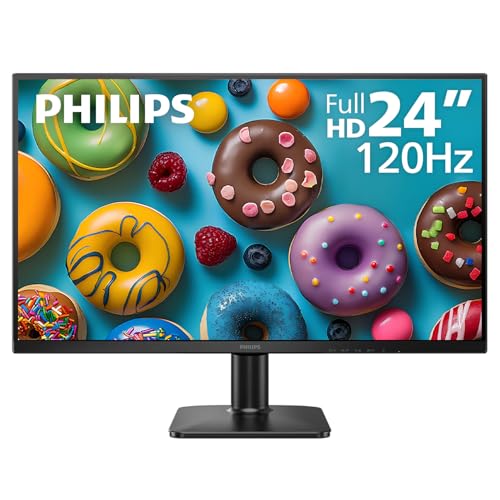
| 3 | Philips 24E2N2100 | 23.8" | IPS | 120Hz | Clean IPS panel with a smooth 120Hz boost for work and light gaming |
| 4 | Acer KB272 | 27” | IPS | 120Hz | Best 27-inch FHD for mixed use: big screen, fast refresh, good color |
| 5 | MSI PRO MP273L E14 | 27” | IPS | 144Hz | Big 27-inch IPS panel with true 144Hz fluidity |
| 6 | Dell S2425HSM | 23.8" | IPS | 144Hz | Ergonomic champion: height adjust, pivot, speakers, and a white finish |
| 7 | MSI MAG 274CF X24 | 27” | VA | 240Hz | The speed king for competitive gaming at 1080p |
| 8 | Philips 241V8LB | 23.8" | VA | 100Hz | Deep contrast and solid build for media consumption and office work |
| 9 | MSI PRO MP272LE | 27” | IPS | 100Hz | Best budget-minded 27-inch office screen with DisplayPort and tool-free assemby |
| 10 | Philips 221V8LB | 21.5" | VA | 100Hz | The small-space specialist: compact, crisp VA, and Adaptive Sync |

Pros
Cons
Best for: Anyone who wants a fast, well-built 24-inch IPS monitor for mixed gaming and productivity without fuss.
Check current price on Amazon →
The Dell SE2426H is the monitor that makes you wonder why you ever tolerated 60Hz. Dell tuned this 23.8-inch IPS panel to hit 144Hz with a 1ms MPRT response, and the difference is immediate — scrolling through web pages is silky, mouse movement feels direct, and games that run at high frame rates look like they’re supposed to. The IPS technology means you can sit off-angle and the brightness and color stay consistent, which matters if you share the screen or have it off to the side on an L-shaped desk.
The biggest omission is the stand. Dell kept the base simple: tilt only, no height adjustment, no swivel. You can fix that with a VESA arm (100x100mm pattern), but it’s worth knowing that the included stand keeps the panel close to the desk. On the connectivity side, you get two HDMI ports — one of which supports the full 144Hz — but no DisplayPort or VGA. That’s fine for most modern PCs and consoles, but if you need to hook up an older machine, you’ll need an adapter.
What makes the SE2426H our top pick is how well it balances everything that matters for a daily driver. The 3-star TUV eye comfort certification is not just a checkbox — it reduces harmful blue light while keeping the image from turning that sickly yellow tint you see on cheaper “low blue light” modes. The thin bezels make it disappear in a multi-monitor row. For the person who plays some games, works in spreadsheets, and watches the occasional show, this is the one to get.

Pros
Cons
Best for: Gamers on a budget who also need a reliable monitor for school or work, and want the option to mount it on an arm.
Check current price on Amazon →
MSI packs a lot of gaming monitor into what looks like an office display. The 23.8-inch IPS panel runs at 144Hz with Adaptive Sync over HDMI 2.0, and MSI rates the response at 1ms. The real surprise is the 1500:1 contrast ratio — most IPS panels hover around 1000:1, so this one handles darker scenes with noticeably deeper blacks. That matters when you’re playing a moody single-player game or working with dark UI themes.
The port selection is generous. HDMI 2.0 handles the 144Hz signal, and there’s also a VGA input for connecting an older laptop or a secondary PC without hunting for adapters. HDMI-CEC is a nice touch — it lets you control the monitor with your console remote if you use it with a PlayStation or Xbox. The tilt range is decent, but like most of these monitors, you’ll want a VESA mount if you care about height.
MSI also includes a built-in Eye-Q Check tool that helps you optimize the display settings based on a quick vision test. It’s a gimmick you’ll use once, but the TUV flicker-free certification is genuine: eliminate the PWM flicker that strains your eyes over long sessions. If you want a monitor that can go from spreadsheets to Overwatch without skipping a beat, this is a strong contender.
Pros
Cons
Best for: Office workers and casual gamers who want a simple, solid IPS monitor with noticeably smoother motion than the office standard.
Check current price on Amazon →
The Philips 24E2N2100 is the monitor that proves you don’t need 144Hz to feel the upgrade. 120Hz is 100% faster than the 60Hz most people are used to, and the difference in everyday tasks is profound. Scrolling through documents, dragging windows, even just moving the mouse cursor — it all feels immediate and fluid. The IPS panel gives you the color consistency that VA panels in some of the other Philips models lack, making this a better choice if you do any photo editing or design work.
The bezels are genuinely thin on three sides, so if you plan to run two of these side by side, the seam between them is minimal. Connectivity is basic: one HDMI and one VGA. That’s enough for a single modern PC, but if you need to plug in both a laptop and a desktop, you’ll be swapping cables. The stand only tilts, and there’s no VESA adapter included in the box, so you’re stuck with the default position unless you buy a separate mount.
Philips backs this display with a 4-year advance replacement warranty — if it fails, they ship a replacement before you send the old one back. That confidence is rare at this level. For anyone who spends hours staring at spreadsheets, emails, or code and wants a smoother experience without diving into gaming-grade specs, this is a very thoughtful choice.

Pros
Cons
Best for: People who want a large, fast display for gaming and general use and don’t mind the slightly softer image that comes with 1080p at this size.
Check current price on Amazon →
Going big with 1080p is a trade-off. The Acer KB272 gives you a 27-inch IPS panel running at 120Hz with a 1ms visual response boost, and the 99% sRGB coverage means colors look punchy and accurate right out of the box. For gaming, the large screen makes you feel more immersed, and the 120Hz refresh rate keeps everything smooth. Adaptive Sync support means you won’t see tearing even when frame rates fluctuate.
The trade-off is pixel density. At 27 inches, a 1920×1080 resolution gives you about 81 pixels per inch. That’s noticeably less sharp than a 24-inch 1080p panel. Text can look slightly soft, and you might notice jagged edges on fine details. If you do a lot of reading or design work, this is not the best choice. But for games and video, the softer image is less noticeable, and the extra screen real estate is a real benefit.
Acer kept the stand minimalist — tilt only — and the maximum brightness of 250 nits is fine for indoor use but won’t overpower a sunny window. The port selection includes HDMI and VGA, and there’s no DisplayPort. Despite those compromises, the combination of size, speed, and IPS color makes this the best 27-inch option for someone who wants one main screen for everything.

Pros
Cons
Best for: Gamers who want a big 144Hz screen with good contrast and don’t need ultra-sharp text resolution.
Check current price on Amazon →
The MSI PRO MP273L E14 is essentially a bigger version of the 24-inch MSI we already covered, and it brings the same 144Hz smoothness to a 27-inch canvas. The 1500:1 contrast ratio is welcome — dark corners in games look inky rather than washed out, which is rare for an IPS panel. MSI also includes FreeSync support over HDMI 2.0, so the monitor can match your GPU’s output frame by frame.
At 27 inches, the pixel density is lower, but MSI compensates with a 4-sided slim bezel design that makes the screen feel larger than it is. The VESA mount is standard, so you can pair it with an arm if the tilt-only stand doesn’t fit your setup. The HDMI-CEC feature is handy if you use this with a console — the TV remote can control the monitor volume and power.
MSI also allows firmware updates via USB, which is nice for long-term compatibility but rare at this level. If you want a big, fast screen for gaming and don’t mind the pixel pitch, this is the 27-inch model to get over the Acer KB272, because you get 144Hz instead of 120Hz and better contrast. The difference in smoothness between 120Hz and 144Hz is subtle, but for competitive shooters it matters.

Pros
Cons
Best for: People who care deeply about ergonomics and want a monitor that adjusts to them, plus built-in speakers to free up desk space.
Check current price on Amazon →
The Dell S2425HSM is the rare monitor that treats your neck and ears as seriously as your eyes. The stand is a highlight: you can raise the panel by several inches, tilt it, pivot it into portrait mode, and swivel it left or right. That kind of adjustability is usually reserved for higher-end professional displays. If you share a desk with someone who’s taller or shorter, or you switch between sitting and standing, this monitor adapts without needing a third-party arm.
The built-in speakers are a genuine bonus. Most monitor speakers are tinny and useless, but the dual 3W drivers here produce a wide enough frequency range to make video calls, YouTube, and even some music listenable without external speakers. They’re not going to replace a soundbar, but they eliminate the need for desktop speakers in a tight setup.
The ash white color is a personal taste thing. It looks clean and premium, but it will show dust and fingerprints more than a black model. Performance-wise, the 144Hz IPS panel delivers the same smooth motion as the Dell SE2426H, and the 4-star TUV certification goes a step further in reducing blue light. If you value adjustability and hate dongles for audio, this is the one to get.

Pros
Cons
Best for: Competitive gamers who prioritize raw speed and smoothness over image sharpness, and who mostly play fast-paced shooters.
Check current price on Amazon →
The MSI MAG 274CF X24 is built for one thing: speed. A 240Hz refresh rate means the image updates every 4.2 milliseconds. Combined with a 0.5ms response time, motion is effectively instant — there’s no blur, no ghosting, no perceptible lag. For anyone playing Overwatch, Valorant, Apex Legends, or Call of Duty at a serious level, this monitor gives you a genuine competitive edge.
MSI uses a Rapid VA panel here, which means you get the deep blacks and high contrast that VA tech is known for, but with a much faster response than typical VA panels. The 240Hz refresh rate also comes with AMD FreeSync Premium support, which keeps tearing away even when frame rates dip. The AI Vision feature is a nice extra: it analyzes dark areas of the image and boosts brightness without blowing out the rest of the scene. That helps you spot enemies hiding in shadows.
The downside is the same as every 27-inch 1080p monitor: text and fine details look soft. This is not a monitor for reading documents or editing photos. The stand is basic, and you’ll want to set the panel back a bit on your desk to hide the pixel structure. But if raw speed is your priority, nothing else on this list comes close.

Pros
Cons
Best for: People who watch a lot of movies in dim light, want good contrast, and don’t need the widest viewing angles.
Check current price on Amazon →
The Philips 241V8LB proves that VA still has a place in the 1080p monitor world. This 23.8-inch VA panel produces much deeper blacks than any IPS monitor, and the contrast makes movies and games with dark scenes look properly cinematic rather than washed out. The 100Hz refresh rate is a modest uplift from 60Hz, but it’s enough to make everyday scrolling feel more responsive.
The three-sided frameless design is genuinely impressive for a monitor at this level. If you pair two of these side by side, the bezel between them is practically invisible. The EasyRead mode that mimics paper for reading long documents is a thoughtful touch for office work. Philips also includes LowBlue Mode and flicker-free backlight for eye comfort.
The weakness is viewing angles. Sit slightly off-center and the image loses contrast and color accuracy. For a single user sitting directly in front of the screen, that’s fine. But if you plan to use this in a shared setup or for collaborative work, an IPS monitor would serve you better. The VA panel also means response times aren’t as fast as the gaming-focused monitors — you might see some smearing in very fast dark transitions. Still, for its intended audience of media consumers and general office users, this is a solid performer.

Pros
Cons
Best for: Office users who want a large, comfortable 27-inch screen with good eye care features and DisplayPort connectivity.
Check current price on Amazon →
The MSI PRO MP272LE targets productivity first. The 27-inch IPS panel runs at 100Hz, which is twice the speed of a standard office monitor but below the gaming-focused 144Hz models. That’s fine for documents, coding, and spreadsheets — the smoothness improvement over 60Hz is still very noticeable. The IPS technology means colors are consistent across the screen, and viewing angles are wide enough for side-by-side work.
MSI made assembly truly tool-free: you snap the stand in and tighten a captive screw, and the cable clip keeps your desk tidy. The Power Link feature is a neat idea — the monitor turns on and off with your PC, so you don’t have to press its power button. The port selection includes both HDMI and DisplayPort, which is unusual at this level. Having DisplayPort gives you an alternative if your GPU’s HDMI ports are taken.
The 27-inch size with 1080p means text isn’t razor-sharp, but for general office work the extra screen area is more important than pixel density. The stand only tilts, but VESA 100x100mm mounting is supported. MSI also includes the Eye-Q Check tool and TUV certifications for long sessions. If you need a large primary monitor for work and don’t need high refresh rate for gaming, this is a smart, well-built choice.

Pros
Cons
Best for: Anyone who needs a space-saving Full HD monitor for a secondary display, a single monitor in a dorm room, or an older-PC setup that benefits from VGA.
Check current price on Amazon →
The Philips 221V8LB is the smallest monitor here, and that’s exactly its strength. The 21.5-inch VA panel fits where a 24-inch screen won’t — think cramped dorm desks, tight cubicles, or as a vertical secondary screen for Discord and Spotify. At this size, 1080p looks extremely sharp because the pixel density is about 102 PPI. Text is crisp, and the small screen makes it easy to read without moving your head.
The VA panel gives this monitor the same deep contrast as its 24-inch sibling. Blacks look black, colors pop, and the 100Hz refresh rate with Adaptive Sync makes motion smooth. Philips includes LowBlue Mode and flicker-free backlight, and the four-year warranty applies here too. The bezels are thin on three sides, so if you have the space for two, they can sit side by side with minimal gap.
The narrow viewing angles of VA are less of an issue at this size because you’re likely sitting directly in front. The main limitation is the stand: tilt only, and some configurations don’t include VESA mounting. Check the listing if you plan to mount it. For anyone who needs a small, good-looking monitor that doesn’t take over the desk, this is the one.
Full HD monitors are everywhere, but the differences between them determine whether you love or tolerate your screen. Here are the factors that actually separate a great 1080p monitor from a mediocre one.
The refresh rate is the number of times the screen updates per second. A standard office monitor runs at 60Hz, which has been the default for decades. Moving to 100Hz or 120Hz makes the biggest single improvement you can feel — scrolling, window animations, and mouse movement become noticeably smoother. For gaming, 144Hz is the threshold where motion clarity goes from “good” to “fluid.” Competitive shooters benefit from 240Hz, but only if your GPU can push those frame rates. Adaptive Sync (FreeSync or G-Sync Compatible) is important because it matches the monitor’s refresh to your GPU’s output, eliminating screen tearing without the stutter of V-Sync.
IPS panels dominate the 1080p market now, and for good reason. They offer wide 178-degree viewing angles, so the image stays consistent even if you sit off to the side. Color accuracy is generally better, making IPS the choice for anyone who does photo editing, design, or just wants realistic-looking images. VA panels trade viewing angles for contrast. They produce much deeper blacks because the liquid crystals can block more light when turned off. That makes VA better for movies and dark games, but the narrower viewing angle means the image looks washed out if you’re not centered. For a single user sitting directly in front, VA can be stunning. For shared desks or multi-monitor setups, IPS is safer.
1920 x 1080 is sharpest at 24 inches and below. At that size, you get around 92 PPI, which is enough that individual pixels are hard to see. Step up to 27 inches and the PPI drops to 81 — text starts to look soft, and you may notice jagged edges on fonts. That trade-off is acceptable for gaming and video, where the larger screen is more immersive, but for word processing or coding, some people find it fatiguing. If you do a lot of reading, stick with 24 inches or consider a 27-inch QHD monitor. If you game or watch movies, 27-inch 1080p is perfectly fine.
A monitor that only tilts forces you to crane your neck or stack books under it. Height adjustability is the most important ergonomic feature because it lets you align the top of the screen with your eye level. Pivot rotation is useful for reading documents or coding, and swivel helps if you share the screen. If a monitor lacks these adjustments out of the box, check for VESA 100x100mm mounting holes — that lets you add a third-party arm later. For long desk sessions, spending a little extra on a monitor with a better stand pays off immediately in comfort.
At minimum, a modern 1080p monitor needs at least one HDMI port that supports its full refresh rate. HDMI 2.0 can handle 144Hz at 1080p. DisplayPort is also a solid option and often appears on higher-end models. Legacy VGA ports are useful for connecting older PCs, projectors, or if you need a second input without buying an adapter. Built-in USB hubs are rare at this level but convenient if you find one. Speakers are a nice convenience for video calls and casual listening, but rarely good enough for critical listening.
Yes, Full HD remains the most widely supported resolution for gaming, productivity, and streaming. It balances clarity and performance well, especially on screens 24 inches and smaller. For most users, it is still the smart choice.
For casual gaming, 100Hz or 120Hz is a big upgrade from 60Hz. For competitive shooters, 144Hz or higher gives a real advantage in tracking and response time. If you play single-player RPGs or strategy games, 120Hz is fine.
IPS is better for color accuracy, wide viewing angles, and consistent brightness. VA is better for deep blacks and high contrast, but has narrower viewing angles. For general use and gaming, go IPS. For movies and dark-room use, consider VA.
You can, but the color accuracy varies by model. Look for monitors that advertise sRGB coverage (like the Acer KB272 at 99% sRGB). IPS panels are preferred for color-critical work. For professional editing, you may want a dedicated color-calibrated monitor.
24 inches is the sweet spot for sharpness. 27 inches is usable but less crisp — the pixels are more visible. 22 inches is great for small desks or secondary screens but limits multitasking space.
Adaptive Sync (FreeSync or G-Sync Compatible) eliminates screen tearing without adding the input lag of V-Sync. If you play games, it helps. If you only do office work and watch video, you probably won’t notice its absence.
VESA mounting lets you use an aftermarket arm or wall mount, which is essential for serious ergonomic setups. If the monitor’s stand only tilts and you care about height and position, look for VESA 100x100mm support. It’s a small spec that makes a big difference long term.
The Dell SE2426H is the monitor we’d recommend to almost anyone. It hits the perfect trifecta of 144Hz smoothness, IPS color consistency, and genuine eye comfort certification — all in a clean 24-inch package that fits any desk. If you need ergonomic adjustability and built-in speakers, the Dell S2425HSM is a worthwhile step up. For gamers who want a bigger 27-inch screen with fast motion, the MSI PRO MP273L E14 and Acer KB272 both deliver, with the MSI taking the lead on pure refresh rate. The MSI MAG 274CF X24 is the specialist pick for competitive players who need 240Hz.
If you are still undecided, think about what you do most. If it is a mix of work and play, aim for a 24-inch IPS monitor with at least 120Hz. If you are building a dual-screen setup, the thin-bezel Philips models or the MSI PRO line are excellent candidates. The 10 best 1920 x 1080 monitors in 2026 cover every use case — you just have to pick the one that fits your habits.
This article contains Amazon affiliate links. We may earn a small commission on qualifying purchases at no extra cost to you.


