Physical Address
304 North Cardinal St.
Dorchester Center, MA 02124
Physical Address
304 North Cardinal St.
Dorchester Center, MA 02124

We've picked the 10 best 4K monitors in 2026, from everyday workhorses to high-end gaming OLEDs. Find the perfect display for your setup.
You’ve finally decided to upgrade to 4K. Then you look at the options and it all goes sideways. Do you want 27 or 32 inches? IPS or OLED? 60Hz or something faster? A basic panel or one that does double duty as a smart TV? The sheer number of choices can make you wonder if you should just stick with your old 1080p screen and call it a day.
But the upgrade is worth it. The jump in pixel density transforms everything from spreadsheets to open-world games. The trick is knowing which trade-offs matter for how you actually use a monitor. We sorted through the current lineup to find the best 4K monitors in 2026 for different kinds of buyers. Whether you need a no-fuss office companion, a colour-accurate creative workstation, or a blistering gaming display, there’s a pick here that fits.
Our lineup runs from mainstream all-rounders like the Dell 27 Plus S2725QS to the utterly gorgeous ASUS ROG Swift PG32UCDM OLED, with a few curveballs such as the Samsung Smart Monitor M7 and the Samsung Odyssey G55C (QHD, but worth a look for serious gamers). Here’s what we found.
TL;DR: The Dell 27 Plus S2725QS is the one most people should buy: sharp 4K at 120Hz with great colour and solid speakers. The Dell 27 Plus S2725QC adds USB-C connectivity for laptop users. The ASUS ROG Swift PG32UCDM is the ultimate gaming display with 240Hz OLED. The LG 27UP650K-W is the best pick for colour-sensitive work on a moderate budget. For a giant 32-inch smart monitor, the Samsung M7 is a compelling all-in-one.
| # | Product | Size | Resolution | Panel Type | Refresh Rate | Best For |
|---|---|---|---|---|---|---|
| 1 | Dell 27 Plus S2725QS | 27" | 4K (3840×2160) | IPS | 120Hz | All-round use, work and light gaming |
| 2 | Dell 27 Plus S2725QC | 27" | 4K (3840×2160) | IPS | 120Hz | USB-C laptop connectivity |
| 3 | LG 32UR500K-B | 32" | 4K (3840×2160) | IPS | 60Hz | Big-screen desktop use |
| 4 | LG 27US500-W | 27" | 4K (3840×2160) | IPS | 60Hz | Minimalist office setup |
| 5 | LG 27UP650K-W | 27" | 4K (3840×2160) | IPS | 60Hz | Colour-critical creative work |
| 6 | Samsung Smart Monitor M7 | 32" | 4K (3840×2160) | IPS | 60Hz | Streaming and smart-home hub |
| 7 | ASUS ROG Swift PG32UCDM | 32" | 4K (3840×2160) | QD-OLED | 240Hz | Hardcore gaming and HDR |
| 8 | Samsung Odyssey G55C | 32" | QHD (2560×1440) | VA | 165Hz | Competitive curved gaming |
| 9 | Sceptre U325W-UPT | 32" | 4K (3840×2160) | IPS | 70Hz | Large, straightforward 4K |
| 10 | **Gawfolk 27" | 27" | 4K (3840×2160) | IPS | 60Hz | Simple home or office screen |

Pros
Cons
Best for: The person who wants one monitor for work, media, and the occasional game, without spending on a gaming-specific panel.
Check current price on Amazon →
Dell’s S2725QS has been one of the most popular 4K monitors for a reason: it gets the fundamentals right. The 27-inch IPS panel delivers true-to-life colours straight out of the box, and 99% sRGB coverage means your photos and designs won’t look washed out. The 1500:1 contrast ratio is better than average for IPS, giving blacks enough depth to make HDR content pop without the local-dimming lottery.
What sets the S2725QS apart from the dozen other 27-inch 4K displays is the 120Hz refresh rate. Most office monitors are stuck at 60Hz, but scrolling through a spreadsheet or dragging windows feels significantly more fluid here. It’s not a gaming monitor per se, but AMD FreeSync Premium keeps frame timing smooth when you do fire up a game. The 0.03ms response time (grey-to-grey) is marketing hyperbole for real-world gaming, but in practice motion handling is clean.
The built-in speakers are a genuine surprise. Dell re-engineered them and it shows: there’s actual low-end presence, and dialogue sounds clear even at moderate volume. You can skip a soundbar for casual use. The stand, however, is a disappointment: tilt only, no height or pivot. You’ll need an aftermarket arm if you want proper ergonomics. Also note that this model uses HDMI and DisplayPort only. If you need a single USB-C cable to power and display a laptop, look at the S2725QC variant below.

Pros
Cons
Best for: Anyone with a recent USB-C laptop who wants a clean one-cable desk.
Check current price on Amazon →
This is basically the same monitor as the S2725QS, but with USB-C added. The port delivers up to 65W of power delivery, enough to charge a 13-inch MacBook Pro or a Dell XPS during a workday. You plug in one cable and get video, power, and basic USB connectivity. That convenience is the whole reason this monitor exists, and for laptop-centric setups it’s a meaningful upgrade.
The rest of the experience is identical: the same 27-inch 4K IPS panel at 120Hz, the same ComfortView Plus, the same improved speakers. The S2725QC is a touch heavier because of the extra electronics, but on a desk it doesn’t matter. If you can live without the USB-C port, save your money and get the S2725QS. If you hate cable clutter, spend the difference.

Pros
Cons
Best for: Someone who wants a big 4K screen for productivity and occasional media, with decent colour.
Check current price on Amazon →
The LG 32UR500K-B is a straightforward 32-inch 4K monitor that doesn’t try to be anything fancy. The IPS panel covers 90% of the DCI-P3 colour space, which is good for photo editing and Netflix binges. The 60Hz refresh rate is standard for this tier; you won’t notice any issues with office work or casual gaming, but competitive players will want something faster.
LG includes some gaming-oriented features like Dynamic Action Sync to reduce input lag and Black Stabilizer to brighten shadows in games. They aren’t as sophisticated as what you’d get on a proper gaming monitor, but they’re a nice bonus for a productivity-focused display. The MaxxAudio-enhanced speakers get moderately loud without distorting, and they’re fine for YouTube and video calls.
What holds the 32UR500K-B back is the stand: tilt only. At 32 inches, the ideal seating position matters a lot, and not being able to adjust height or swivel is a real limitation. If you don’t mind sitting square-on, it’s a solid value.

Pros
Cons
Best for: A bright, tidy desk where aesthetics matter as much as the display.
Check current price on Amazon →
The LG 27US500-W is the monitor you buy when you want the desk to look good and the screen to be sharp. The all-white finish with near-invisible bezels makes it feel like a display from a design studio catalog. Under the hood, it’s a capable 27-inch 4K IPS panel with the same 90% DCI-P3 coverage as its black 32-inch sibling.
LG’s OnScreen Control software lets you split the screen into custom zones and adjust settings without fumbling with buttons. Reader Mode tones down the blue light and can make extended document reading much more comfortable. The stand is the same disappointment as the 32-inch model: tilt only, no height or rotation. If you’re pairing this with a nice monitor arm, that’s fine. If you want a desk-ready solution, you might eventually want something more adjustable.

Pros
Cons
Best for: Photographers, video editors, and designers who need colour accuracy and a flexible stand.
Check current price on Amazon →
The LG 27UP650K-W is the most colour-accurate 27-inch 4K monitor on this list at its level. The 95% DCI-P3 coverage and VESA DisplayHDR 400 certification mean it can handle HDR photos and video much better than a basic sRGB screen. The brightness peaks at 400 nits, which is enough to bring out highlights in HDR without the blooming you get from an edge-lit panel. If you work in colour-sensitive fields, this is the one to consider.
The stand is a big upgrade over LG’s other entries here. It offers height, tilt, and pivot, so you can flip the screen to portrait mode for coding or long documents. That kind of adjustability usually costs extra. The Switch App adds customisable layouts, letting you snap windows into preset grids with a hotkey. It’s a clever tool for managing multiple applications.
The 60Hz refresh rate is a limitation for gamers. Even casual games will feel less fluid compared to the Dell’s 120Hz. And DisplayHDR 400 is entry-level; it’s better than standard SDR but not in the same league as an OLED or a full-array local dimming display. But for the intended audience, those trade-offs are easy to accept.
Pros
Cons
Best for: A second-room monitor that doubles as a TV, or a bedroom setup where you want one screen for work and Netflix.
Check current price on Amazon →
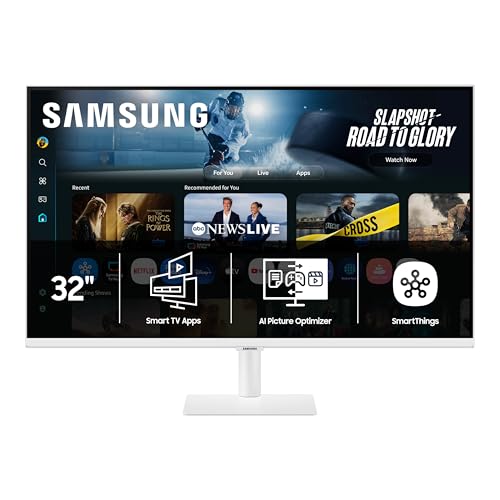
The Samsung M7 is a smart monitor first, a 4K display second. It runs Samsung’s Tizen operating system, giving you access to Netflix, Disney+, Apple TV, and dozens of other streaming services without connecting a computer. You can also play games through Samsung Gaming Hub, which streams titles from Xbox Cloud Gaming and other services. For a bedroom or a small apartment, it can replace both a monitor and a TV.
The screen itself is a competent 32-inch 4K panel with decent colour. Samsung’s Vision AI automatically adjusts the picture based on what you’re watching: boosting contrast for games, softening sharpness for documents. The Active Voice Amplifier uses AI to raise dialogue volume if it detects background noise, which actually works in a way simple volume controls don’t.
Connectivity is generous: USB-C with 65W power delivery, two HDMI ports, and a USB-A port. Samsung Knox provides multi-layered security, which matters if you connect this monitor to your home IoT network. The tilt-only stand is a compromise for a device that needs to work both on a desk and a media console. If you want one screen that does everything passably well, this is it.

Pros
Cons
Best for: Serious gamers and enthusiasts who want the best image quality money can buy.
Check current price on Amazon →
The ASUS ROG Swift PG32UCDM is the monitor you look at and immediately understand why people spend this much. The 32-inch QD-OLED panel produces blacks so deep they look like the screen is off, while highlights hit 1000 nits in small windows. Colours are breathtaking: 99% DCI-P3 coverage and true 10-bit gradation mean gradients are perfectly smooth. Content that’s mastered in HDR looks transformative.
Performance is equally impressive. 240Hz at 4K is incredibly demanding, but with a powerful graphics card, games feel almost telepathic. The 0.03ms grey-to-grey response eliminates ghosting completely. G-SYNC Compatible certification ensures smooth frame rates across the range.
ASUS has put real engineering into burn-in mitigation. A custom heatsink, graphene film, and an advanced airflow design keep temperatures down. The monitor also includes an OLED Care suite accessible through the DisplayWidget Center software. The three-year warranty explicitly covers burn-in, which is the kind of confidence that makes an OLED purchase less worrying. If you want the absolute best 4K gaming monitor in 2026, this is the one.

Pros
Cons
Best for: Gamers who prioritise high frame rates over pixel count and want an immersive curved display.
Check current price on Amazon →
We included the Odyssey G55C because it answers a different question: what if you want a big, fast gaming monitor but don’t need 4K? QHD (2560×1440) on a 32-inch screen gives you 93 pixels per inch, which is noticeably sharper than 1080p but much easier on your graphics card than 4K. With a 165Hz refresh rate and AMD FreeSync, you can push high frame rates in competitive shooters without spending $800 on a GPU.
The 1000R curve wraps around you like the inside of a sphere. It genuinely adds to immersion in racing and flight sim games. The VA panel delivers deep blacks and high contrast, though you lose colour saturation when you move off-axis. The stand is sturdy but offers only tilt. If you’re building a gaming rig and want to hit 144 fps in modern titles, this QHD display makes more sense than a 4K monitor that struggles to maintain 60.

Pros
Cons
Best for: Anyone who needs a large 4K screen for office productivity, spreadsheets, and general use, and doesn’t want to overthink the purchase.
Check current price on Amazon →
The Sceptre U325W-UPT does exactly what it says: it gives you 32 inches of 4K resolution for a straightforward price. The IPS panel covers 99% sRGB, which is more than enough for everyday applications. The 70Hz refresh rate is a small bump over the standard 60Hz, making cursor movement and window dragging feel a fraction smoother.
The monitor comes with two HDMI and two DisplayPort inputs, which is generous for the category. You can connect a PC, a console, and a streaming stick all at once. The built-in speakers are serviceable for system sounds and video calls but lack bass. The stand is the main cost-saving measure: it only tilts. At this screen size, you may want to mount it on an arm to get the ergonomics right.
Sceptre doesn’t include fancy extras like USB-C or a high-refresh mode. It’s a no-nonsense 4K display that gets the job done. If you just want a big screen for business or home, this is a sensible choice.

Pros
Cons
Best for: A secondary monitor, a student’s first 4K screen, or a simple home office display where extra features aren’t needed.
Check current price on Amazon →
The Gawfolk 27-inch 4K monitor is the definition of a no-frills display. It gives you a 4K IPS panel with 3840×2160 resolution and a set of essential ports, but nothing else. The stand is tilt-only, and the buttons for the on-screen menu feel a bit loose. But the panel itself is surprisingly competent for the price. Colours look decent after a manual calibration, and the 178-degree viewing angle means you can share the screen without colour shifting.
Flicker-Free technology and a low-blue-light mode make it comfortable for long sessions. The monitor is also light enough at under 8 pounds that a cheap monitor arm can easily hold it. For a secondary screen or a setup where every dollar counts, the Gawfolk delivers the core experience without frills. Just be prepared to tweak the settings and maybe buy a better stand.
When you start shopping for a 4K monitor, the first thing to decide is how you’ll actually use it. The right choice for a home office worker is different from the right choice for a competitive esports player. Here are the factors that separate a good pick from a bad one.
The panel technology determines what the screen looks like from different angles, how deep the blacks are, and how accurate the colours are.
4K on a 27-inch monitor gives you about 163 pixels per inch. Text looks razor-sharp, and you can run two documents side by side without squinting. On a 32-inch 4K screen, pixel density drops to about 138 PPI, still very sharp but noticeably less crisp. If you prize sharpness, a 27-inch 4K monitor is ideal. If you want more workspace and don’t mind slightly larger pixels, go 32-inch.
QHD at 32 inches (93 PPI) is a step down in sharpness but still a big improvement over 1080p. For gaming, QHD is a smart compromise because it’s much easier for a graphics card to drive at high frame rates than 4K.
Refresh rate determines how many times per second the image updates. 60Hz is standard and fine for office work, web browsing, and watching video. At 60Hz, scrolling and cursor movement can feel slightly choppy, but most people get used to it.
120Hz makes everything feel smoother. Scrolling web pages, dragging windows, and playing games all benefit from the extra fluidity. The Dell 27 Plus monitors run at 120Hz, and it’s a noticeable upgrade without requiring a top-tier graphics card.
240Hz is for competitive gaming. You need a powerful GPU to hit those frame rates at 4K (the ASUS PG32UCDM is the only 4K monitor on our list that goes that high), but the responsiveness is real.
Adaptive sync technologies like FreeSync and G-SYNC eliminate screen tearing when your frame rate fluctuates. Almost every modern monitor supports at least one of them.
If you use a laptop, USB-C with power delivery is a game-changer. You connect one cable and get video, power, and often a USB hub. The Dell S2725QC and the Samsung M7 both offer USB-C with 65W PD, enough to charge a thin-and-light laptop. Without USB-C, you’ll need the laptop’s charger plus a separate video cable.
HDMI 2.1 is important if you want to run 4K at 120Hz or higher from a modern console or PC. Most monitors here use HDMI 2.0, which can do 4K at 60Hz. The ASUS PG32UCDM has HDMI 2.1 for full-bandwidth 4K at 240Hz.
You will look at this screen for thousands of hours. A good stand lets you adjust height, tilt, and swivel to find a comfortable position. Height adjustment is the most important: the top of the screen should be at or just below eye level. Pivot (rotating to portrait mode) is useful for coding or reading long documents. Many monitors in this roundup skimp on the stand to keep costs down. If you care about ergonomics, make sure the monitor you pick either has a fully adjustable stand or is VESA-compatible so you can add an arm.
Yes. The extra pixel density makes text look much sharper than on a 1080p or 1440p display. You can also fit more windows side by side without scaling issues. For any task that involves reading or writing, the upgrade is noticeable immediately.
You can, but expect to lower settings or use a lower resolution. A card like the RTX 4060 or RX 7600 can run many games at 4K 30 to 60 fps with medium settings. For competitive gaming, you may want to switch to QHD resolution or use a monitor with a higher refresh rate.
HDMI 2.1 can carry 4K at 120Hz with full colour depth. HDMI 2.0 can also do 4K at 120Hz, but only with 4:2:0 chroma subsampling, which slightly reduces colour detail in games. For a PC, DisplayPort 1.4 can handle 4K at 120Hz without subsampling. The Dell S2725QS uses HDMI 2.0 and DisplayPort, and its 120Hz mode works perfectly with DisplayPort.
The LG 27UP650K-W is a strong choice because of its 95% DCI-P3 coverage and adjustable stand. For even better colour accuracy, the ASUS PG32UCDM offers 99% DCI-P3 and true 10-bit depth, but its glossy OLED panel can be distracting in a bright room.
Curved screens help with immersion in games, especially at larger sizes like 32 inches. For productivity, a flat screen is generally preferred because straight lines (like those in spreadsheets or CAD) don’t get distorted. The Samsung Odyssey G55C is curved, but it’s QHD, not 4K. No 4K monitor on this list is curved.
27-inch gives you sharper text and a tighter pixel pitch. 32-inch gives you more screen real estate and a more immersive experience for movies and games. Choose based on your desk depth and how close you sit. If your desk is less than 24 inches deep, 27-inch is safer.
The best 4K monitor for most people is the Dell 27 Plus S2725QS. It combines a sharp 4K IPS panel with a 120Hz refresh rate, good colour, and surprisingly capable speakers, all in a clean design. If you need USB-C, the Dell S2725QC is the same screen with that port added.
For creative professionals, the LG 27UP650K-W offers higher colour coverage and a fully adjustable stand. For gamers who want the ultimate image, the ASUS ROG Swift PG32UCDM delivers a breathtaking OLED experience with a 240Hz refresh rate.
If you want a single device that works as both a monitor and a smart TV, the Samsung M7 is the only real option here, and it does that job well. And for a no-compromise curved gaming monitor at QHD, the Samsung Odyssey G55C is a strong alternative if 4K isn’t your priority.
No matter which one you pick, upgrading to a 4K monitor changes how you see your computer. The sharpness and extra workspace quickly become something you can’t go back from.
This article contains Amazon affiliate links. We may earn a small commission on qualifying purchases at no extra cost to you.


