Physical Address
304 North Cardinal St.
Dorchester Center, MA 02124
Physical Address
304 North Cardinal St.
Dorchester Center, MA 02124

Find the best Chromebox for your desktop. From high-performance Intel Core i3 models to budget-friendly renewed picks, we compare 10 mini PCs for Chrome OS.
Your desk is already a tangle of cables, monitor arms, and dongles. The last thing you need is a full‑tower PC crammed under your feet. A Chromebox solves that: a palm‑sized box that runs Chrome OS, mounts behind a monitor, and sips power. But the market for these mini desktops is surprisingly fragmented. Some pack modern Intel Core processors and four display outputs; others are older Celeron‑based units that still chug along for basic tasks. Sifting through the ASUS, HP, and Acer lineups takes more effort than it should, especially when model numbers look identical and the specs differ in subtle ways.
We looked at the 10 Best Chromeboxes available right now, covering everything from the newest ASUS Chromebox 5a series to refurbished units that cost less than a good keyboard. Whether you need a workhorse for multi‑monitor spreadsheets or a silent media player for the living room, there’s a Chromebox here for you. We’ll walk you through each one, call out the trade‑offs, and tell you which to buy for what.
TL;DR: The ASUS Chromebox 5a (Core i3) is the most powerful Chrome OS mini desktop you can buy today, with DDR5 RAM and quad‑display support. The ASUS Chromebox 5a (Celeron, 8GB) is the best all‑rounder for most people. The HP Chromebox G4 (8GB) is the smart business pick, and the Acer Chromebox CXI3 (Renewed) is the cheapest way to get an i3 into your setup.
| # | Product | Processor | RAM | Storage | Key Connectivity | Best For |
|---|---|---|---|---|---|---|
| 1 | ASUS Chromebox 5a (Core i3) | Intel Core i3-1315U | 8GB DDR5 | 128GB NVMe | 2 HDMI, DP, USB-C, 2.5GbE | Power users needing four 4K displays |
| 2 | ASUS Chromebox 5a (Celeron, 8GB) | Intel Celeron 7305 | 8GB DDR4 | 128GB NVMe | 2 HDMI, DP, USB-C, 2.5GbE | Balanced performance and expandability |
| 3 | ASUS Chromebox 5a (Celeron, 4GB) | Intel Celeron 7305 | 4GB DDR4 | 128GB NVMe | 2 HDMI, DP, USB-C, 2.5GbE | Entry-level with room to upgrade RAM |
| 4 | ASUS Chromebox 5a (Renewed, Celeron, 4GB) | Intel Celeron 7305 | 4GB DDR4 | 128GB NVMe | 2 HDMI, DP, USB-C, 2.5GbE | Getting the 5a chassis for less |
| 5 | HP Chromebox G4 (8GB) | Intel Celeron 7305 | 8GB DDR4 | 64GB eMMC | 2 HDMI, USB-C, Wi-Fi 6E | Businesses wanting 8GB in a compact HP |
| 6 | HP Chromebox G4 (4GB) | Intel Celeron 7305 | 4GB DDR4 | 64GB Flash | 2 HDMI, USB-C, Gigabit Ethernet | Cost-conscious office deployments |
| 7 | HP Chromebox G4 Mini Desktop PC (4GB, w/ microSD) | Intel Celeron 7305 | 4GB DDR4 | 64GB eMMC | 2 HDMI, USB-C, Micro SD reader | A slightly expanded HP bundle |
| 8 | HP Chromebox G2 (Celeron 3867U) | Intel Celeron 3867U | 4GB DDR4 | 32GB SSD | 2 USB 3.1, HDMI | Ultra‑budget or secondary machine |
| 9 | Acer Chromebox CXI3 (Renewed, i3) | Intel Core i3-7130U | 8GB DDR4 | 64GB SSD | HDMI, USB‑C, 2 USB 3.1 | Refurbished value with a real i3 |
| 10 | Acer Chromebox CXI3 (Celeron 3867U) | Intel Celeron 3867U | 4GB DDR4 | 32GB SSD | HDMI, USB‑C, 2 USB 3.1 | Absolute lowest-cost entry |
When you’re choosing a Chromebox, the differences go way beyond the nameplate. Here’s what matters.
Processor generation and class. A Celeron 7305 (Alder Lake) is a huge leap over the older 3867U (Kaby Lake). The 7305 has five cores and modern instruction sets; the 3867U is strictly dual-core and gets bogged down with more than three tabs. If you can swing a Core i3, the jump in sustained performance is dramatic.
RAM: 4GB vs 8GB. Chrome OS can run on 4GB, but you’ll feel the squeeze with a dozen tabs and a handful of Android apps. 8GB is the sweet spot for most people. Some Chromeboxes let you upgrade the RAM later; others solder it down. Check before you buy.
Storage type and speed. eMMC is slow and soldered. NVMe SSDs are several times faster and user‑replaceable on many ASUS models. A 128GB NVMe drive makes the system feel snappier and leaves room for Linux containers.
Display outputs and multi‑monitor support. If you use more than one screen, the number and type of ports matter. The ASUS Chromebox 5a supports four 4K displays via two HDMI, one DisplayPort, and one USB‑C. Most HP and older Acer boxes max out at two displays.
Security and manageability. All modern Chromeboxes have Titan C security chips and automatic OS updates. For business, HP’s managed‑deployment tools and extended support can save IT time.
Form factor and mounting. Every Chromebox here can be VESA‑mounted behind a monitor, but some come with the bracket included (ASUS, Acer) and some require you to buy it separately (HP).

Pros
Cons
Best for: Anyone who runs Chrome OS at its limits: multiple 4K monitors, dozens of tabs, Android apps, and Linux containers.
Check current price on Amazon →
This is the only Chromebox on our list with DDR5 RAM, and it shows. The Core i3-1315U is a 10‑core hybrid chip (two performance cores, eight efficiency cores) that makes short work of heavy multitasking. Web apps load instantly, even with 30 tabs open. Android emulation in Chrome OS feels fluid, and Linux containers compile code without the stutter you get on Celeron models.
The port selection is unmatched: two HDMI 2.0, one DisplayPort 1.4, and one USB‑C with DisplayPort Alt Mode. That lets you run four 4K screens simultaneously. The 2.5Gb Ethernet port is a bonus for home‑office setups with a NAS. The chassis vents heat well, though the fan spins up when you’re pushing it hard – it’s not silent, but it’s not intrusive. This is the Chromebox you buy when you don’t want to compromise.
Pros
Cons
Best for: The default recommendation for most people who want a modern, expandable Chromebox without paying for the i3.
Check current price on Amazon →
This is the version we’d point most desktop‑upgrade buyers toward. The Celeron 7305 is a five‑core processor that handles Google Docs, video calls, and light photo editing without complaint. It won’t win benchmarks, but the gap between it and the i3 is smaller in Chrome OS than in Windows because the OS is leaner.
The 8GB of DDR4 RAM and 128GB NVMe SSD put it ahead of every HP option at this level. You can open 20 tabs, keep Slack and Google Meet running, and still have memory to spare. If you later decide to upgrade, the SSD and RAM are both accessible under the bottom cover. The chassis is the same as the i3 model, so you get the same four‑display flexibility and 2.5Gb Ethernet. For the vast majority of home and small‑office users, this is the one to get.
Pros
Cons
Best for: Buyers on a strict budget who plan to install their own 8GB or 16GB RAM stick.
Check current price on Amazon →
The 4GB version of the ASUS Chromebox 5a is a classic bait and switch in a good way. It comes with 4GB of DDR4, which is barely enough for Chrome OS these days. But because ASUS uses socketed SO‑DIMMs, you can pop in an 8GB or 16GB stick for very little. The base hardware is identical to the 8GB model: the same Celeron 7305, the same 128GB NVMe drive, the same port array.
That makes this the most cost‑effective choice if you’re comfortable with a screwdriver. Just factor in the cost of extra RAM. Out of the box, though, 4GB will feel tight. Expect tab reloads and stutter when switching between heavy web apps. The NVMe storage helps, but RAM is the limiting factor.
Pros
Cons
Best for: Budget shoppers who want the 5a platform and are willing to accept refurbished condition.
Check current price on Amazon →
The renewed version of the ASUS Chromebox 5a is essentially the same machine as section 3 but sold by a third‑party refurbisher. It comes with a 90‑day warranty and typically shows minor signs of use. The key advantage is that you get the same 128GB NVMe drive and quad‑display support at a lower entry point. Like the new model, you’ll need to add more RAM yourself. The renewed unit is a solid pick for a media center or a kid’s computer where you don’t mind rolling the dice on cosmetics.

Pros
Cons
Best for: Office environments where reliability and a small footprint matter, and where 8GB RAM is non‑negotiable.
Check current price on Amazon →
HP’s G4 design is a refined, business‑class Chromebox. The metal chassis feels denser than the plastic ASUS enclosure, and the ventilation is well thought out. With 8GB of DDR4 and the Celeron 7305, this HP handles office productivity with ease. The 64GB eMMC is the weak link – it’s slower than any NVMe drive on this list – but for cloud‑first workflows where everything lives in Google Drive, it’s acceptable.
The bundle includes a Team Group 128GB microSD card, which helps offset the internal storage limitation. You can run Android apps or Linux containers from the card, though performance won’t match internal storage. The port layout is basic: two HDMI and one USB‑C. That means a maximum of two external displays, which is enough for many desks but less flexible than the ASUS options.

Pros
Cons
Best for: Light use cases like a single‑screen kiosk, a classroom terminal, or a guest workstation.
Check current price on Amazon →
This is the entry‑level HP G4. The 4GB RAM configuration makes it strictly for light duty. Opening more than a handful of tabs will cause noticeable slowdowns. The 64GB of flash storage is also tight – after the OS and essential apps, you have about 40GB free. Unlike the ASUS models, there’s no way to upgrade the RAM or storage; both are soldered. That limits the useful life of this machine to maybe two or three years before Chrome OS updates become heavier.
If you’re buying for a company that deploys dozens of these for single‑app kiosks, the low entry point and HP’s management tools make sense. For personal use, we’d strongly recommend stepping up to the 8GB version or the ASUS line.
Pros
Cons
Best for: Someone who needs the microSD card for local storage and only does basic web work.
Check current price on Amazon →
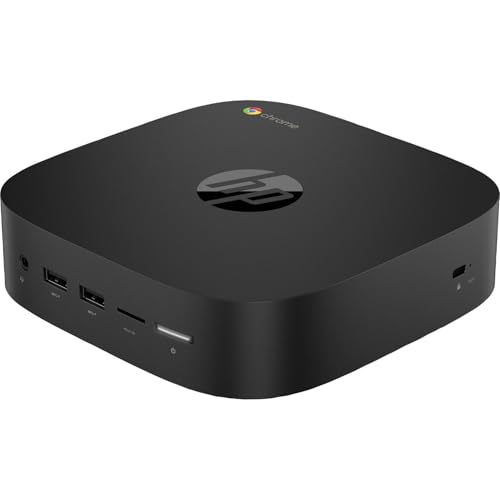
This variant of the HP G4 is essentially the same as the previous one but bundles a 128GB microSD card. The card is useful for storing downloads, photos, or offline files, but don’t expect it to perform like an internal SSD. It’s also sold as a third‑party bundle, so the warranty and support come from the seller, not HP directly.
For a secondary machine in a home or a basic office terminal, the extra storage makes this slightly more practical than the bare‑bones HP G4 (4GB) without the card. But the same RAM limitation applies: if you ever need to run more than a few apps, you’ll run into the wall.
Pros
Cons
Best for: A dirt‑cheap secondary machine for a single browser window or as a dedicated web‑based display.
Check current price on Amazon →
The HP Chromebox G2 is a relic from 2019. The Celeron 3867U is a dual‑core chip that struggles with modern web pages. Even basic YouTube playback at 1080p can stutter if you have a few other tabs open. The 32GB SSD is also very small – after Chrome OS, you have around 15GB of free space. And the Auto Update Expiration (AUE) date is likely in 2028, giving it only two more years of guaranteed security updates.
On the positive side, it’s incredibly small and silent, and the build quality is typical HP solid. If your use case is limited to a single web app (like a digital signage dashboard or a recipe display in a kitchen), the G2 can be perfectly adequate. But we wouldn’t recommend it as a primary computer.

Pros
Cons
Best for: Anyone on a tight budget who needs real processing power and is comfortable buying refurbished.
Check current price on Amazon →
The Acer CXI3 is a generation older than the ASUS 5a, but don’t dismiss it. The Core i3-7130U is a dual‑core, four‑thread chip from 2018 that still handles web workloads with authority. In everyday use, it feels faster than a Celeron 7305 because of its higher single‑core clock speed and better memory bandwidth. With 8GB of RAM, this Chromebox can juggle 20 tabs and Android apps without breaking a sweat.
The 64GB SSD is a SATA M.2 drive, which is slower than NVMe but still a huge step up from eMMC. The port selection is limited to one HDMI and one USB‑C with DisplayPort, supporting two external displays. It’s not as flexible as the ASUS 5a, but for a dual‑monitor desk, it’s fine. The renewed condition means you get a discount and a 90‑day warranty. This is the best budget pick if you value CPU performance above all else.

Pros
Cons
Best for: The absolute lowest cost of entry into Chrome OS on a desktop, where performance is not a priority.
Check current price on Amazon →
This is the most affordable Chromebox in our roundup, and it shows. The Celeron 3867U is the same dual‑core chip used in the HP G2, and it feels every bit as sluggish. With 4GB of RAM and a 32GB SSD, you are in the territory of “carefully manage your resources.” You can run Chrome OS, a few browser tabs, and maybe one Android app. But that’s about it.
The hardware is decently built – the CXI3 chassis has a metal top and a solid feel. The port selection includes one HDMI, one USB‑C, three USB 3.1, and an SD card reader. You can VESA‑mount it. But the performance wall is real. If you’re buying this as a first desktop for a child or as a dedicated video chat machine, it will work. For anything more, spend the extra money on the ASUS Celeron 4GB model or the renewed Acer i3.
A Chromebox is simple on the surface, but a few key specs determine whether it feels snappy or sluggish. Here’s what to look for.
The processor is the single biggest factor in perceived performance. Chromeboxes use either Intel Celeron (low‑power, few cores) or Intel Core i3/U series (higher clock, more threads). The current‑generation Celeron 7305 (Alder Lake) has five cores and is adequate for everyday browsing, video calls, and office apps. It handles maybe 15–20 tabs before it starts to swap.
Older Celeron 3867U chips are dual‑core and feel much slower. They struggle with modern JavaScript‑heavy sites and can’t keep up with 1080p YouTube plus a few background tabs. Avoid them unless your budget is extremely tight.
Core i3 processors (like the 1315U or the older 7130U) offer dramatically better multitasking. They can handle 40 tabs, Linux containers, and Android apps simultaneously. If you often have multiple windows open, or if you use Linux or Crostini, get an i3.
Chrome OS runs on 4GB, but just barely. With a few tabs and a chat app, you’ll see the system start to use swap, which slows everything down. 8GB is the minimum for comfortable use. Some Chromeboxes (like the ASUS 5a) allow you to upgrade the RAM later via SO‑DIMM slots. Others (HP, Acer) have soldered RAM that cannot be changed.
If you plan to keep the machine for more than two years, we recommend 8GB. For a secondary machine or kiosk, 4GB may be fine.
The storage type has a huge impact on boot times, app launch speed, and overall system responsiveness. eMMC is flash memory soldered to the board. It is slow (read speeds around 150–300 MB/s) and not replaceable. NVMe SSDs are much faster (1000–3500 MB/s) and usually upgradeable.
All ASUS Chromebox 5a models use NVMe SSDs. The HP G4 units use eMMC, which is a noticeable downgrade. The Acer CXI3 uses a SATA M.2 SSD (faster than eMMC, slower than NVMe). For a primary machine, aim for NVMe.
How many screens do you need? The ASUS Chromebox 5a can drive up to four 4K displays simultaneously (via two HDMI, one DisplayPort, and one USB‑C). Most HP and Acer models are limited to two displays. If you work with multiple windows or monitor a lot of data, the ASUS quad‑display setup is a real advantage.
All Chromeboxes include Titan C security chips and receive automatic Chrome OS updates for a guaranteed period (usually 8 years from the platform’s first release). For business deployment, HP offers centralized management tools (Google Admin console integration) that make configuring dozens of units easier. ASUS and Acer support the same Google admin features, but HP’s hardware is often built with fleet management in mind.
If you want a Chromebox that can grow with you, choose one with user‑accessible RAM and storage. The ASUS Chromebox 5a is the only model on this list with both upgradeable RAM and an NVMe SSD slot. The HP G4 and Acer CXI3 have soldered RAM and non‑replaceable storage. That makes them less future‑proof.
Chrome OS devices get automatic updates for eight years from the release date of the platform. For the ASUS Chromebox 5a (released in 2024), updates are guaranteed until 2032. Older models like the HP G2 (2019) will stop receiving updates in 2028. You can check the exact Auto Update Expiration (AUE) date on the Google support page for each model.
Yes. Chrome OS has a built‑in Linux container called Crostini that lets you run Linux apps without dual‑booting. All modern Chromeboxes support it, though you’ll want at least 8GB of RAM and a fast SSD for a smooth experience. Some models also allow you to install a full Linux distro on bare metal, but that voids the warranty and may not work with all hardware.
For many people, yes. Chrome OS can handle web apps, Android apps, and Linux apps. If your workflow is entirely in a browser (Google Docs, Office 365, Slack, Zoom) and you don’t rely on Windows‑only software like Adobe Creative Suite or AutoCAD, a Chromebox is a capable and secure alternative. For heavy video editing or gaming on the go, a Chromebox is not the right tool.
Most Chromeboxes come with a VESA mounting bracket and screws. You attach the bracket to the back of your monitor (using the 75x75mm or 100x100mm holes) and then slide the Chromebox onto the bracket. This frees up desk space and keeps the unit out of sight. The ASUS and Acer models include the bracket; some HP units require you to purchase a separate mounting kit.
It depends on the model. The ASUS Chromebox 5a has socketed DDR4/DDR5 SO‑DIMM slots and a removable NVMe SSD. The HP G4 and Acer CXI3 have soldered RAM and eMMC or non‑standard storage, so upgrades are not possible. Before buying, check the product’s service manual or look for models with “upgradeable RAM” in the description.
Very good, provided you use a decent external webcam and a USB or Bluetooth headset. Chrome OS supports Google Meet, Zoom, Microsoft Teams, and other platforms natively. The Chromebox itself will handle video streams without issue. Some models, like the ASUS 5a, have the CPU headroom to run multiple video feeds at once.
The best Chromebox for you comes down to how many screens you use and how much RAM you need. For the absolute best performance, the ASUS Chromebox 5a with Core i3 is the clear winner. Its quad‑display capability, DDR5 RAM, and NVMe storage make it the most future‑proof option. For most people, the ASUS Chromebox 5a with Celeron and 8GB of RAM is the sweet spot: you get the same great port selection and upgradeability without the i3 premium.
If you’re buying for a business that needs simple, managed desktops, the HP Chromebox G4 (8GB) is a solid choice with excellent build quality. And if your budget is tight, the Acer Chromebox CXI3 (Renewed, i3) offers an older but still fast processor at a fraction of the cost.
No matter which you pick, make sure you’re getting at least 8GB of RAM and, ideally, an NVMe drive. Skimping on those two specs is the fastest way to end up frustrated a year later.
This article contains Amazon affiliate links. We may earn a small commission on qualifying purchases at no extra cost to you.


