Physical Address
304 North Cardinal St.
Dorchester Center, MA 02124
Physical Address
304 North Cardinal St.
Dorchester Center, MA 02124

The 10 best ultrawide monitor picks for gaming, productivity, and content creation. Our top choices include Samsung Odyssey G9, Dell S3425DW, Sceptre 34-inch, and LG 34WR55QK-B.
You’ve got three windows stacked across two monitors, and you still can’t see your full spreadsheet and your reference docs at the same time. Or you’re neck-deep in a sim racing title and the side mirrors on a 16:9 screen just don’t exist. That’s when the argument for an ultrawide monitor stops being theoretical. A 21:9 (or even 32:9) display gives you the equivalent of one and a half to two standard monitors, all without a bezel gap and with a wraparound curve that fills your peripheral vision.
The trick is picking the right one. Ultrawides range from 34-inch entry-level panels that cost as much as a solid dinner out to 49-inch behemoths with Dual QHD resolution and the fastest OLED response times on the planet. We’ve sorted through the current crop of 10 best ultrawide monitors to help you find the one that matches how you actually work and play.
TL;DR: The Samsung Odyssey G9 G95C is the all-around best for gaming and immersion. The Dell S3425DW is the productivity champion with excellent color and USB-C. The Sceptre 34-inch offers a great balance of performance and features. The Samsung ViewFinity S50GC is the affordable ultrawide for everyday use.
| # | Product | Resolution | Refresh Rate | Best for |
|---|---|---|---|---|
| 1 | Samsung Odyssey G9 G95C | 5120×1440 (DQHD) | 240Hz | Hardcore gaming and panoramic immersion |
| 2 | Samsung Odyssey OLED G9 G91SD | 5120×1440 (DQHD) | 144Hz | Competitive gaming with perfect blacks |
| 3 | Samsung 40” Odyssey G7 G75F | 5120×2160 (WUHD) | 180Hz | High-res gaming with smooth motion |
| 4 | Samsung 49” Business Curved | 5120×1440 (DQHD) | 120Hz | Heavy multitasking and dock-less setups |
| 5 | Dell 34 Plus S3425DW | 3440×1440 (WQHD) | 120Hz | Color-critical work and all-day comfort |
| 6 | LG 34WR55QK-B | 3440×1440 (WQHD) | 100Hz | Balanced work and play on a budget |
| 7 | Sceptre 34-Inch C345B-QUT168 | 3440×1440 (WQHD) | 180Hz | High-refresh gaming at a down-to-earth cost |
| 8 | SANSUI 34-Inch Curved | 3440×1440 (UWQHD) | 200Hz | Max refresh rate with AI extras |
| 9 | Samsung ViewFinity S50GC | 3440×1440 (Ultra-WQHD) | 100Hz | Budget ultrawide for office and streaming |
| 10 | LG 34U530A-W | 2560×1080 (WFHD) | 100Hz | Entry-level ultrawide with ergonomic stand |
We narrowed down the field by focusing on what actually separates a good ultrawide from a great one:

Pros
Cons
Best for The gamer or power user who wants one monitor to replace a dual 27-inch setup and still push 240 frames per second.
Check current price on Amazon →
The Odyssey G9 G95C is the monitor that makes you question why you ever tolerated bezels. At 49 inches with a 32:9 aspect ratio, it’s essentially two 27-inch QHD panels fused side by side with a single, seamless, deeply curved surface. The 1000R curvature matches the natural shape of your field of view, so your eyes don’t have to refocus as they travel across the screen. In a game like Cyberpunk 2077 or Microsoft Flight Simulator, the effect is genuinely transporting.
The VA panel with DisplayHDR 1000 hits 1000 nits peak brightness, which makes HDR content pop in a way that cheaper ultrawides can’t touch. The 240Hz refresh rate is overkill for most people, but if you play fast-paced shooters or racing sims, you will feel the fluidity. FreeSync Premium Pro keeps tearing at bay. The only compromise versus the OLED version (next up) is black levels – deep greys instead of true black – but the G95C costs meaningfully less and still delivers an incredible image. The built-in PIP and PBP features let you run a Mac and a PC side by side at native resolution, which is a lifesaver if you straddle two ecosystems.

Pros
Cons
Best for The enthusiast who wants the best possible image quality for gaming and HDR movies, and is willing to manage OLED quirks.
Check current price on Amazon →
The Odyssey OLED G9 G91SD is the monitor you buy when you’ve already decided that ordinary contrast isn’t acceptable. Samsung’s QD-OLED technology uses quantum dots to produce colors that are both wider in gamut and more volumetric than any conventional LCD panel can manage. Blacks are truly black – individual pixels turn off completely – and the resulting contrast makes HDR content look three-dimensional.
The 144Hz refresh rate is plenty for single-player epics and even for most competitive titles, and the 0.03ms grey-to-grey response means there’s zero perceivable ghosting. Samsung has included anti-burn-in features like logo and taskbar detection that automatically dim static elements, plus a thermal modulation system that manages heat without fan noise. If you’re worried about OLED longevity, this is the most thoughtfully protected panel on the market. The ergonomic stand is also a step up from the simpler mount on the VA G9, with full height, tilt, and swivel range. The trade-off is peak brightness in large bright scenes – OLEDs can’t match the sustained 1000-nit output of the G95C, but the trade is worth it for the black-level performance.

Pros
Cons
Best for Gamers who want a true ultrawide 4K experience without jumping to 49 inches, and have the graphics hardware to drive it.
Check current price on Amazon →
The Odyssey G7 G75F occupies a sweet spot in the Samsung lineup: it’s smaller than the 49-inch behemoths but still offers ultrawide resolution at a pixel count that rivals standard 4K monitors. With 5120×2160 across a 40-inch curved panel, this monitor gives you far more vertical pixels than a 32:9 screen, which makes it better suited for professional work that benefits from height – timelines, code editors, document previews. The 180Hz refresh rate and 1ms response ensure that it keeps up with any game you throw at it.
The VA panel with DisplayHDR 600 delivers good contrast and bright highlights, though it can’t match the OLED G9’s infinity in dark scenes. The 1000R curve wraps around you effectively, and the monitor’s aspect ratio is a true 21:9 rather than the stretched 32:9 of the 49-inch models. That makes it more versatile for general computing, because standard 16:9 content doesn’t leave gigantic black bars. If you want ultrawide immersion without committing to the desk space a 49-inch requires, this is the one.

Pros
Cons
Best for Professionals who live in spreadsheets, code, design, and data analysis and want to replace a dual 27-inch setup plus a dock with one cable.
Check current price on Amazon →
The Samsung 49” Business Curved is what happens when you ask a monitor team to solve the problem of desk clutter. The single USB-C connection carries video, data, and up to 90 watts of power to your laptop, so you can dock with one plug. That’s a serious quality-of-life win for anyone who rotates between a desk and a meeting room all day.
The 32:9 Dual QHD panel (5120×1440) is essentially two 27-inch monitors glued together without a gap, and the 1000R curve makes the far edges of the screen easier to see without turning your head. Colleagues who do financial modeling, video editing timelines, or CAD work will find themselves with more usable space than any dual-monitor setup can provide, because there’s no bezel right in the middle. The 120Hz refresh rate makes panning and scrolling noticeably smoother than a standard 60Hz office monitor, and the built-in speakers are good enough for conference calls and background video. The trade-off is that this is a productivity-first panel – the 300-nit brightness and HDR400 certification are fine for a well-lit office, but you wouldn’t choose it for HDR gaming.
Pros
Cons
Best for Designers, editors, and professionals who need accurate color across a wide gamut and want a monitor that’s comfortable for eight-hour days.
Check current price on Amazon →
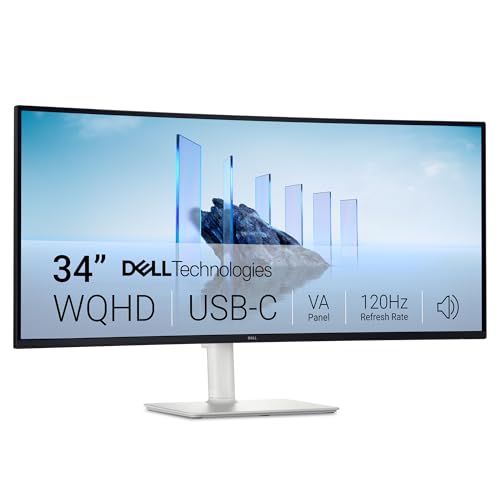
The Dell S3425DW is one of those monitors that disappears into your workflow because it does everything right. The 34-inch VA panel hits 3440×1440 at a 21:9 aspect ratio, and Dell tuned it for sRGB and DCI-P3 color spaces that cover most creative work. The 3000:1 contrast ratio means you get solid depth in darker scenes, and the HDR readiness is useful for reviewing HDR footage even if it isn’t certified to a high brightness tier.
What really sets this monitor apart is the combination of USB-C convenience and the ComfortView Plus hardware. The USB-C port delivers 65 watts to your laptop and carries the video signal, so you can connect a modern laptop with a single cable. The built-in speakers are notably better than most integrated monitor audio – they have more output power and frequency range than the previous generation, which makes a real difference for casual listening or video calls. And ComfortView Plus reduces blue light emissions to 35 percent or less without the yellow tint you’d normally expect. If you sit in front of a screen for a living, your eyes will thank you by the end of the week.

Pros
Cons
Best for Mixed-use buyers who split their time between office productivity, creative work, and casual gaming, and want a reliable all-rounder.
Check current price on Amazon →
The LG 34WR55QK-B doesn’t try to be the fastest or the flashiest ultrawide. Instead, it nails the fundamentals. The 34-inch VA panel offers WQHD resolution with good contrast, and the 100Hz refresh rate makes everyday scrolling and window management feel fluid. For the occasional round of a first-person shooter or a strategy game, it’s more than capable.
The USB-C port with 65W power delivery simplifies connectivity, and LG’s OnScreen Control utility lets you divvy up the screen into custom zones for different applications. The ergonomic stand is a welcome inclusion at this tier – you get full height, tilt, and swivel adjustments, plus a practically borderless design on three sides. The built-in speakers are fine for system sounds and YouTube, though you’ll still want dedicated speakers for music or movies. If you’re looking for an ultrawide that doesn’t demand a particular use case or sacrifice, this is a smart pick.
Pros
Cons
Best for Gamers on a tighter build who still want a smooth, high-refresh ultrawide for fast-paced titles and immersive single-player games.
Check current price on Amazon →
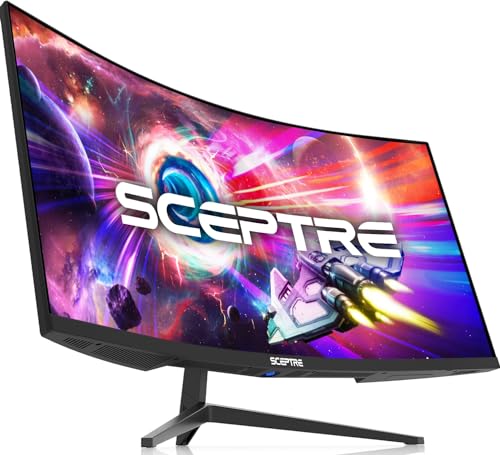
The Sceptre C345B-QUT168 is proof that you don’t need to spend flagship money to get a genuinely good ultrawide gaming experience. This 34-inch VA panel runs at up to 180Hz, which is higher than many monitors costing twice as much, and the 1ms MPRT response time keeps motion clean and ghosting minimal. In a fast-paced game like Call of Duty or Overwatch, the difference between 60Hz and 180Hz is enormous, and Sceptre delivers that fluidity without cutting corners on resolution.
The 3440×1440 WQHD panel is sharp enough that you won’t see individual pixels at normal viewing distances, and the 1500R curve provides a gentle wrap that anchors your focus. The dual DisplayPort inputs let you run a desktop PC and a laptop or console simultaneously, though there’s no USB-C for single-cable laptop use. The backcover LED lighting is a nice touch for atmosphere. The biggest compromises are in color reproduction (it’s rated 99% sRGB, but in practice it doesn’t match the uniformity of Dell’s or LG’s panels) and the lack of a height-adjustable stand. But for pure gaming performance per inch, this monitor is hard to beat.

Pros
Cons
Best for Gamers who want the absolute highest refresh rate possible in a 34-inch ultrawide and like experimenting with AI-assisted enhancements.
Check current price on Amazon →
The SANSUI 34-Inch Curved goes straight for the number that catches gamers’ eyes: 200Hz. Through its DisplayPort 1.4 connection, this monitor hits that magic number, and even over HDMI 2.1 it can do 200Hz at lower resolutions or 165Hz at native UWQHD. The Fast VA panel delivers decent contrast and color once calibrated, and the 1500R curve is comfortable for extended sessions.
SANSUI has loaded this monitor with software tricks: AI Crosshair that tries to help you aim, AI Picture Quality that adjusts contrast dynamically, and even a Sniper Scope overlay for precision shooting. Some of these are genuinely useful (AI Blue Light Reduction is a nice alternative to a standard low-blue-light mode), others feel like marketing bullet points. The lack of built-in speakers is disappointing, but the real strength is raw motion clarity. If all you care about is a buttery-smooth image in racing sims and competitive shooters, the SANSUI delivers. It’s worth noting that the 200Hz refresh rate requires a DP 1.4 cable – one is included in the box.

Pros
Cons
Best for Users moving from a standard 16:9 monitor who want ultrawide screen real estate for productivity and occasional media consumption without overspending.
Check current price on Amazon →
The ViewFinity S50GC is Samsung’s answer to the question, “What’s the cheapest way to get ultrawide without being disappointed?” The 34-inch panel runs at native 3440×1440, which is the same resolution that enthusiasts pay much more for on gaming-oriented models. The 100Hz refresh rate makes a real difference in everyday tasks – try scrolling through a dense webpage at 60Hz and then at 100Hz, and you’ll understand why this matters even for non-gamers.
Samsung’s HDR10 support pushes the color space to over a billion shades, and the automatic brightness sensor adjusts the screen to match room lighting. That sounds small, but it genuinely reduces eye fatigue over a full day. The PIP and PBP features are present, so you can run two input sources side by side. The biggest practical downsides are the lack of height adjustment (you can only tilt) and the VA panel’s limited viewing angles relative to IPS. But if you park yourself straight in front of the screen, neither of those will bother you. This is the ultrawide to get if you want the format without making it the centerpiece of your budget.

Pros
Cons
Best for Users who prioritize ergonomics and budget over ultimate sharpness, and want a light, easy-to-position screen for office work in a bright, clean aesthetic.
Check current price on Amazon →
The LG 34U530A-W is the most affordable option in this roundup, and it earns its spot by offering a complete ergonomic package at the lowest entry point. The IPS panel delivers 2560×1080 resolution across 34 inches, which is the same height as a standard 24-inch 1080p monitor but much wider. The pixel density is low enough that you’ll notice some graininess if you sit close, but at arm’s length it’s perfectly usable for spreadsheets, web browsing, and basic productivity.
What makes this monitor interesting is the stand: you get full height, tilt, and swivel adjustment – something that many monitors at twice the price skip. The L-shaped base frees up desk space around it, and the white color option brightens up a workspace. The built-in speakers with Waves MaxxAudio are a cut above typical monitor audio, with enough detail for YouTube and podcasts, and even some room for music. VESA DisplayHDR 400 means HDR content gets a meaningful boost in contrast and brightness. If you’re outfitting a home office on a tight budget and want the ultrawide aspect ratio without fussing with a third-party monitor arm, this is a thoughtfully designed choice.
Before you buy any ultrawide monitor, there are a handful of factors that determine whether you’ll love it or wish you’d gone with a different size or panel technology. Here’s what to consider.
The resolution defines how much you can put on the screen and how sharp it looks. At 34 inches, 2560×1080 is the minimum: you get extra width but the horizontal resolution is the same as a standard 1080p screen. That means individual windows will feel cramped at 100% scaling. 3440×1440 (often called WQHD or UWQHD) is the sweet spot – it bumps the pixel count to nearly five million, giving you room for two full browser windows side by side with readable text.
On larger monitors, 5120×1440 (Dual QHD) gives you the desktop space of two 27-inch QHD monitors in one display. The 49-inch panels use this resolution, and the pixel density is slightly lower than a 27-inch QHD panel, but still plenty sharp for most uses. If you want the highest density, look for 5120×2160 on a 40-inch screen like the Odyssey G7 G75F – that’s true 4K horizontal resolution in a 21:9 format. More pixels require more GPU power for gaming, but for productivity they just mean razor-sharp text and finer detail.
Curvature is measured in radius (1000R, 1500R, 1800R). The smaller the number, the tighter the curve. A 1000R curve wraps around your field of view, so the left and right edges of the screen are the same distance from your eyes as the center. That reduces head turning and eye refocusing, which is a real benefit on monitors wider than 34 inches.
On a 34-inch screen, the difference between 1500R and 1000R is less dramatic, but still noticeable. If you sit close to your monitor (arm’s length or closer), a tighter curve helps. If you often share your screen with others or prefer a flatter surface for precise design work, a milder 1500R curve might be better. For 49-inch monitors, 1000R is the standard and the right choice – without it, the far edges would look distorted.
Refresh rate affects how many times per second the image updates. 60Hz is the baseline for office work. 100Hz or 120Hz dramatically smooths out scrolling, window dragging, and cursor movement, making the whole OS feel more responsive. For gaming, 144Hz is the current sweet spot for smooth motion, and 180Hz to 240Hz gives you an edge in fast-paced competitive titles.
Adaptive sync (FreeSync, G-Sync Compatible, FreeSync Premium Pro) keeps the monitor’s refresh rate in sync with your graphics card’s frame output. Without it, you get screen tearing when frame rates fluctuate. AMD FreeSync is the most common; NVIDIA G-Sync Compatible certification is rarer but valuable if you’re team green. Most modern monitors support both to some degree. FreeSync Premium Pro adds low-framerate compensation (LFC) and HDR support, so it’s worthwhile if you do any gaming at all.
VA panels are the most common in ultrawide monitors. They offer high contrast ratios (usually 3000:1 or higher), deep blacks (though not true black), and decent color. Their weakness is narrower viewing angles – colors and contrast shift if you sit off-axis. VA panels also have slower response times in dark transitions (black smearing) which can show up in fast-paced games.
IPS panels have wider viewing angles and more consistent color across the screen. Their contrast ratio is typically 1000:1, so blacks look more like dark grey, but the color accuracy is often better out of the box. IPS ultrawides are rarer but excellent for creative professionals who need color uniformity.
OLED panels are the premium choice. Each pixel emits its own light, so blacks are perfect and contrast is infinite. Response times are near instantaneous, and color gamut surpasses both VA and IPS. The downside: risk of burn-in from static elements, lower peak brightness in large white areas, and higher cost. Modern OLED monitors have protective features like pixel refresh, logo dimming, and thermal management, making them practical for mixed use if you take basic precautions.
The most useful single feature on a modern ultrawide is USB-C with power delivery. A monitor that delivers 65W or 90W to your laptop over the same cable that carries video is a huge quality-of-life improvement. It eliminates the separate power brick and cable clutter. Most productivity-focused monitors have this; gaming-focused ones often skip it.
Ergonomics matter more than most people expect. A monitor that can move up, down, tilt, and swivel is easier to set up for comfortable viewing. Height adjustment is the most important – you want your eyes to line up with the top third of the screen without slouching or craning. If a monitor only tilts, you may need to buy a separate monitor arm, which adds cost and complexity.
The Samsung Odyssey G9 G95C with its 240Hz refresh rate, 49-inch 1000R curve, and DisplayHDR 1000 is the best overall gaming ultrawide. If you want deeper black levels, the OLED version (G91SD) is superior for image quality. For a smaller 34-inch panel, the Sceptre C345B offers 180Hz and WQHD resolution.
The Dell S3425DW is our top pick for productivity thanks to its excellent color coverage (99% sRGB, 95% DCI-P3), USB-C with 65W charging, and comfortable all-day viewing with ComfortView Plus. The Samsung 49” Business Curved is a strong alternative if you want a single-cable docking solution and maximum screen space.
Yes, especially at 3440×1440 or higher. You can keep your code editor, terminal, documentation, and a browser open side by side without overlapping. The extra horizontal space saves you from constantly switching desktops. A VA panel with good contrast is fine; you don’t need high refresh or OLED for programming, but height adjustment becomes critical for comfort.
Aim for 3440×1440 (WQHD). It’s the standard resolution for 34-inch panels and provides enough pixel density to make text readable without scaling issues. 2560×1080 is too low for this screen size – you’ll see individual pixels and text at 100% scaling will feel oversized. Most 34-inch monitors that cost more than the absolute base are WQHD.
No, but it makes a noticeable difference. Jumping from 60Hz to 100Hz or 120Hz makes scrolling, cursor movement, and window transitions feel fluid and responsive. It reduces eye strain for some people because the image is less judder. It’s not essential, but once you use a 100Hz monitor for a week, going back to 60Hz feels stuttery.
Most modern dedicated GPUs (NVIDIA GTX 1060 and above, AMD RX 500 series and above) can drive a 3440×1440 ultrawide for productivity and lighter games. For 49-inch Dual QHD (5120×1440) or 5120×2160 ultrawides at high refresh rates, you’ll need a more powerful card – think RTX 3070 or higher, or an RX 6800 or better. Integrated graphics from recent Intel or AMD chips can handle 2560×1080 or 3440×1440 at 60Hz for basic office tasks.
Curved is almost always better for ultrawide monitors. On a 34-inch screen, a gentle 1500R curve brings the edges into your peripheral vision and reduces distortion. On 40-inch and 49-inch screens, a 1000R curve is essential – without it, the corners would be too far away to see comfortably. Flat ultrawides are rare because they don’t work well with the aspect ratio.
The Samsung Odyssey G9 G95C is the monitor we’d buy with our own money if we wanted the best all-around ultrawide experience. It delivers class-leading motion clarity, deep HDR performance, and an immersive 49-inch curve that replaces a dual-monitor setup without compromise. If the budget allows and black levels matter more than raw brightness, the Odyssey OLED G9 G91SD edges ahead with its QD-OLED panel.
For the productivity-focused buyer who doesn’t game competitively, the Dell S3425DW combines strong color accuracy, a comfortable stand with USB-C, and eye-friendly blue light reduction better than anything else in its class. The Samsung 49” Business Curved is the specialist choice for power users who need a single-cable dock and two full QHD monitors’ worth of screen.
On the tighter end, the Sceptre 34-Inch offers the best refresh-per-dollar ratio for gamers, while the Samsung ViewFinity S50GC and LG 34U530A-W make ultrawide ownership accessible without forcing you to give up the core feature – that expansive, bezel-free view. There’s a best ultrawide monitor here for every desk and every workload.
This article contains Amazon affiliate links. We may earn a small commission on qualifying purchases at no extra cost to you.


