Physical Address
304 North Cardinal St.
Dorchester Center, MA 02124
Physical Address
304 North Cardinal St.
Dorchester Center, MA 02124

Find the best 4K monitor for your needs in 2026. Our roundup covers 10 top models from Dell, LG, Samsung, Sceptre, and ASUS for work, gaming, and creative tasks.
You have decided to upgrade to 4K. Good call. But then you start digging through listings and find panels with dizzying combinations of IPS, VA, OLED, 60Hz, 120Hz, 240Hz, HDR10, DCI-P3, USB-C, and a hundred model numbers that look almost identical. The right choice depends entirely on what you plan to do with the screen.
The 4K monitor market in 2026 is split cleanly into three camps: office productivity (where text sharpness and all-day comfort matter most), creative work (where color accuracy and panel consistency rule), and gaming (where refresh rate and response time are everything). Some monitors try to straddle two camps, and a few manage it well. But most are best at one thing.
We have combed through the current lineup to find the best 4K monitor for each major use case. The picks below range from a 27-inch everyday hero that just works to a 32-inch OLED that costs as much as a whole PC. Here is what we found.
TL;DR: The Dell 27 Plus S2725QS is the one most people should buy: sharp, fast, and easy to live with. The LG 32UR500K delivers a huge screen with solid color for general use. The ASUS ROG Swift PG32UCDM is the ultimate for competitive gaming and HDR content.
| # | Product | Size | Resolution | Panel | Refresh | Best for |
|---|---|---|---|---|---|---|
| 1 | Dell 27 Plus S2725QS | 27" | 3840×2160 | IPS | 120Hz | All-around office and light gaming |
| 2 | Dell 27 Plus S2725QC | 27" | 3840×2160 | IPS | 120Hz | USB-C laptop docking |
| 3 | Dell 32 Plus S3225QS | 31.5" | 3840×2160 | VA | 120Hz | Big-screen productivity with better contrast |
| 4 | LG 32UR500K | 32" | 3840×2160 | VA | 60Hz | Large 4K on a budget for mixed use |
| 5 | LG 27US500-W | 27" | 3840×2160 | IPS | 60Hz | Clean white desktop with good color |
| 6 | Sceptre Prime U275W-UPT | 27" | 3840×2160 | IPS | 70+Hz | Entry-level 4K with a few extra frames |
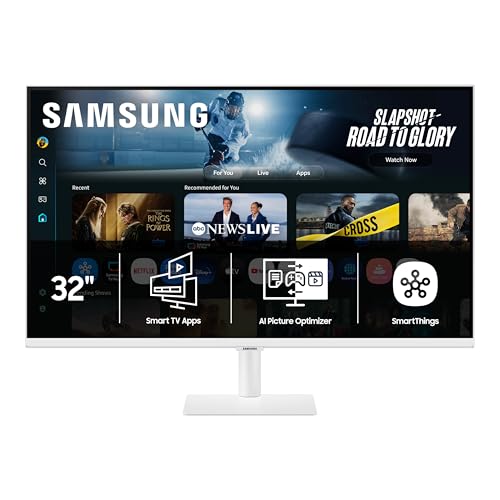
| 7 | Samsung Smart Monitor M7 M70F | 32" | 3840×2160 | VA | 60Hz | All-in-one streaming and productivity |
| 8 | Samsung UJ59 LU32J590 | 32" | 3840×2160 | VA | 60Hz | Affordable 32-inch 4K for general use |
| 9 | Samsung Odyssey G55C | 32" | 2560×1440 | VA | 165Hz | High-refresh QHD curved gaming |
| 10 | ASUS ROG Swift PG32UCDM | 32" | 3840×2160 | QD-OLED | 240Hz | No-compromise gaming and HDR |
Resolution and scaling experience. A 27-inch 4K display runs at roughly 163 PPI, which makes text razor sharp at default scaling in Windows and macOS. Going to 32 inches drops the PPI to about 140, still crisp but requiring slightly larger UI elements. Choose the size that matches your distance and vision.
Panel type for your workload. IPS panels offer wide viewing angles, good color accuracy, and consistent brightness across the screen. VA panels deliver deeper blacks and higher contrast (1500:1 or more) but can suffer from gamma shift when viewed off-center. OLED provides per-pixel black levels and infinite contrast but comes with burn-in risk and higher cost.
Refresh rate and motion clarity. A 60Hz panel is fine for office work and video. Once you scroll documents or move windows, 120Hz makes everything feel smoother. For gaming, 144Hz and above become important, especially in fast-paced genres. Adaptive sync (FreeSync or G-Sync Compatible) eliminates tearing without the performance hit of V-Sync.
Connectivity that fits your setup. USB-C with power delivery (65W or more) lets you run a single cable to a laptop for video, data, and charging. DisplayPort is still the best for high-refresh 4K on a desktop. HDMI 2.1 matters if you plan to hook up a modern gaming console.
Ergonomic adjustability. A stand that offers height, tilt, and swivel is an underrated feature. Few things ruin a productive day faster than propping a monitor on books. VESA mount support gives you the option to use an arm.

Pros
Cons
Best for Someone who wants a sharp, smooth 27-inch 4K monitor for daily work, web browsing, and occasional gaming without spending extra.
Check current price on Amazon →
The S2725QS is the monitor most people should start with. The 120Hz refresh rate transforms how windows feel when you drag them around, and FreeSync Premium keeps scrolling stutter-free. Dell’s ComfortView Plus is genuinely pleasant to use for eight-hour coding sessions; it turns down blue light without making the screen look jaundiced.
The panel covers 99% sRGB, which is enough for spreadsheets, emails, and web design but won’t satisfy a photographer grading RAW files. The integrated speakers caught me off guard. Most monitor speakers are tinny afterthoughts, but these have enough body to make YouTube and conference calls watchable without a separate set. If you need to connect a modern laptop, you will want the sibling S2725QC (next pick) or an adapter, because this model skips USB-C entirely.
The biggest frustration is the stand. You can tilt the screen, but you cannot raise or lower it without aftermarket VESA mounting. Given that the monitor is otherwise so well thought out, that omission stings.

Pros
Cons
Best for Laptop users who want a clutter-free desk and a single cable for power, display, and peripherals.
Check current price on Amazon →
The S2725QC is essentially the same monitor as the S2725QS but with the crucial addition of USB-C. For anyone who docks a MacBook or a thin Windows ultrabook, this is the better pick. One cable handles video, data, and charging at up to 65W, which is enough for most 13- and 14-inch laptops to stay topped up during the workday.
The rest of the experience mirrors its sibling: smooth 120Hz motion, good blue light reduction, and speakers that are better than they have any right to be. If you already have a desktop PC with DisplayPort output, save the difference and get the S2725QS. But if your daily driver is a laptop you plug in every morning, the QC model justifies itself on cable management alone.

Pros
Cons
Best for Anyone who wants a larger screen for productivity and enjoys better contrast for movies, but still wants 120Hz smoothness.
Check current price on Amazon →
The S3225QS is the 32-inch step up in Dell’s Plus lineup, and it swaps the IPS panel for a VA panel. That trade has real consequences. Blacks are noticeably deeper, which makes text pop and video look richer. The 95% DCI-P3 coverage gives it more color punch for HDR content than the 27-inch models’ 99% sRGB.
But VA panels have a narrow sweet spot. If you are not directly centered, the gamma shifts and the image loses contrast. For a single-user desk that is fine. For a family room where people watch from the sofa, it is less forgiving. Like its smaller siblings, the S3225QS skips a height-adjustable stand, which feels more stingy at this size. You will likely want a VESA arm to get the screen to eye level.

Pros
Cons
Best for General desktop use where a big 4K screen matters more than high refresh rates.
Check current price on Amazon →
The LG 32UR500K does not try to be a gaming monitor. It is a straightforward 32-inch 4K display with a VA panel and a 60Hz cap. What it does well is give you a lot of pixels and a large workspace at a very accessible level. The VA panel’s contrast is a step above what you get from cheap IPS screens, and the 90% DCI-P3 coverage adds some life to video streaming.
The built-in speakers with MaxxAudio are serviceable for casual use but not as rich as the Dell’s improved drivers. The stand is basic, so factor in the cost of a VESA mount if you need height adjustment. For a home office or student desk where the monitor sits on a deep table, this is a strong no-fuss choice.

Pros
Cons
Best for Users who want a color-accurate 27-inch 4K display in a white finish for creative work at 60fps.
Check current price on Amazon →
The 27US500-W stands out because of its IPS panel and white chassis. IPS gives it steady viewing angles and consistent brightness, which makes it a better choice for photo editing than the VA-based LG 32UR500K. The 90% DCI-P3 coverage is solid for the category, and the borderless design minimizes visual clutter.
The downside is a flat 60Hz refresh rate with no FreeSync or G-Sync. If you are used to 120Hz on a phone, you will notice the difference when scrolling. The lack of USB-C is also a bummer for laptop users. But for a dedicated secondary monitor or a focused creative workstation, this LG delivers clean, color-true imagery at 4K without the gamer aesthetic.

Pros
Cons
Best for Someone who wants a 4K IPS monitor without spending much, and appreciates a few extra frames in casual gaming.
Check current price on Amazon →
Sceptre has carved out a niche by offering core specs at lower entry points. The U275W-UPT gives you a 27-inch 4K IPS panel that can run at 70+Hz through DisplayPort, which is a notable step above the standard 60Hz office monitor. The IPS panel keeps colors consistent from off-center angles, and the 100% sRGB claim suggests decent out-of-box accuracy for general use.
But the build is where the savings show. The plastic chassis feels hollow, and the stand is basic. The “70+Hz” is not a locked spec; you may get 72Hz or 74Hz depending on your GPU and cable, but it is still short of the 120Hz that the Dell S2725QS delivers. This is a monitor that makes sense if your budget is tight and you want an IPS 4K panel above all else.
Pros
Cons
Best for A dorm room, bedroom, or secondary space where you want a TV and a computer monitor in one device.
Check current price on Amazon →
The Samsung M7 is not a traditional monitor. It runs Samsung’s Tizen operating system, giving you access to Netflix, YouTube, Prime Video, and Samsung TV Plus without connecting a computer. The Gaming Hub streams Xbox Game Pass titles directly on the screen. All of that lives alongside a standard 32-inch 4K VA panel with USB-C connectivity.
The VA panel is perfectly fine for video streaming, with decent contrast for dark scenes. But it is a 60Hz panel, so fast motion and gaming feel less fluid. The Active Voice Amplifier is a thoughtful touch for noisy rooms. If your primary use is spreadsheets all day, the M7’s smart OS will feel like bloat. But if you want a bedroom screen that does double duty as a TV and a monitor, it is a clever package.

Pros
Cons
Best for Users who need a large 4K screen for spreadsheets and documents at a desk, and want a proven, reliable display.
Check current price on Amazon →
The UJ59 has been around for years, and that longevity speaks to its reliability. It is a straightforward 32-inch 4K VA monitor with solid contrast and a built-in FreeSync module that reduces tearing in games. The billion color claim is marketing for 10-bit dithering, but the image quality is genuinely pleasant.
The lack of USB-C means you need separate cables for video and power on a laptop. The stand is barebones. But if you want a large 4K screen that just works and you do not care about high refresh rates or modern connectivity, the UJ59 is a dependable choice that has been a best seller for good reason.

Pros
Cons
Best for Competitive gamers who prioritize high refresh rates over pixel density and want a curved screen.
Check current price on Amazon →
The Odyssey G55C is the odd one out because it is not a 4K monitor. It runs at 2560×1440. But it earns a place here because many shoppers considering a 4K monitor also look at high-refresh QHD displays for gaming. The trade is clear: you lose pixel density but gain a 165Hz refresh rate that makes fast-paced shooters feel significantly smoother.
The 1000R curve is aggressive. It wraps the image around you, which works well for single-player games and racing sims. The VA panel delivers good contrast, though black smearing can be visible in dark transitions. If gaming is your primary use and you can live with QHD sharpness, this is a better choice than a 60Hz 4K panel.

Pros
Cons
Best for Enthusiast gamers and creative professionals who want the best image quality available and are willing to pay for it.
Check current price on Amazon →
The PG32UCDM is the monitor you buy when you want the absolute best picture quality in 2026. The QD-OLED panel delivers per-pixel lighting that makes IPS and VA look like compromises. Blacks are truly black. Highlights are spectacular. The 240Hz refresh rate with 0.03ms response time makes every game feel instant.
ASUS has put serious effort into burn-in mitigation. The custom heatsink, graphene film, and airflow design are not just marketing; they keep the panel cooler during long sessions. The OLED Care features accessible via DisplayWidget Center give you manual control over pixel refresh and screen movement.
For creative work, the 99% DCI-P3 coverage and true 10-bit color depth make it suitable for grading video and editing photos. The HDR performance is transformative. But the cost is high, and you should still take care not to leave static UI elements on screen for hours. If you are a competitive gamer or a visual professional who wants a single monitor that does everything, this is the one. Everyone else should scroll back up to the Dell.
The most important decision you will make when buying a 4K monitor is not which brand or which price tier. It is what panel technology matches your usage. The rest of the specs serve that choice.
IPS panels are the safe choice for most people. They offer wide viewing angles, consistent brightness, and good color accuracy. You can sit slightly off to the side and the image still looks correct. IPS is ideal for offices, shared desks, and creative work that does not require deep blacks.
VA panels trade viewing angles for contrast. A good VA panel hits 1500:1 or 3000:1 contrast, making blacks look much deeper than any IPS. That helps text feel sharper and movies look more cinematic. The catch is gamma shift: move your head even a few degrees and the image loses saturation. VA is best for a single-user desk where you sit centered.
OLED panels are a different class. They turn off individual pixels to produce true black, and they cover wide color gamuts like DCI-P3 natively. The image quality is stunning. But OLED monitors cost more and require some maintenance to avoid burn-in from static elements like taskbars. If you can afford it and you are careful, OLED is the best 4K monitor you can buy.
A 60Hz 4K monitor is fine for typing, reading, and watching video. Once you start scrolling long web pages or documents, 120Hz becomes a tangible upgrade. Your eyes perceive the smoothness as reduced eye strain, even if you do not think about it.
For gaming, the target depends on your GPU. A 60Hz 4K panel works with a console or a mid-range card. A 120Hz 4K panel demands a powerful graphics card to push that many pixels at that rate. If you play competitive shooters, you might prefer a QHD 240Hz panel (like the Odyssey G55C) over a 60Hz 4K panel. Adaptive sync (FreeSync or G-Sync) is worth having even at 60Hz because it eliminates the stutter when the frame rate dips.
USB-C with power delivery changes how you use a monitor. With one cable, you can connect a laptop, charge it, and pass through a keyboard and mouse. That is a huge quality of life improvement for anyone who docks a laptop daily. Look for at least 65W of power delivery; 90W or more is better for larger laptops.
DisplayPort remains the standard for high-refresh 4K on a desktop. HDMI 2.1 is important if you plan to connect a PlayStation 5 or Xbox Series X, as both can output 4K at 120Hz. Many monitors in our list still use HDMI 2.0, which caps 4K at 60Hz.
The best monitor in the world is uncomfortable if it is too low or too high. A height-adjustable stand is worth the extra money. Many monitors in this roundup skimp on that feature, leaving you to buy a VESA arm. Factor that into your setup.
An anti-glare coating matters more than you think. Matte screens are easier on the eyes in a lit room than glossy screens that reflect overhead lights.
27 inches is the sweet spot for most desks. It gives you about 163 pixels per inch, which makes text sharp without requiring scaling that breaks some applications. 32 inches feels more spacious but drops the pixel density to 140 PPI, which still looks crisp. Larger than 32 inches is better suited for a TV distance.
It depends on your GPU. A 4K 60Hz monitor can run fine with a mid-range card on less demanding games. For 4K at 120Hz or higher, you need a high-end graphics card like an RTX 4080 or better. If your card cannot hit high frame rates at 4K, consider a QHD monitor with a higher refresh rate.
IPS panels offer wide viewing angles and consistent color. VA panels offer deeper blacks and higher contrast but have narrower viewing angles. For a desk where you sit directly in front of the screen, VA can look better in dark scenes. For a monitor that you view from different positions, IPS is more forgiving.
If you use a laptop as your primary computer and want a single cable for charging and display, USB-C is a convenience you will not want to give up. If you use a desktop PC with separate video and power cables, USB-C is not necessary.
Yes. Many modern 4K monitors support 120Hz over DisplayPort or HDMI 2.1. Dell’s S2725QS and S2725QC are examples that hit 120Hz. Some monitors go to 144Hz or 240Hz, but those require more expensive panels and stronger GPUs.
Burn-in happens when static elements like a taskbar or logo are displayed for hours and leave a permanent ghost. Modern OLED monitors use cooling systems, pixel shifting, and pixel refresh cycles to reduce the risk. If you use a screen saver and vary your content, burn-in is unlikely. But it is still a factor to consider for productivity use where the same windows sit in the same positions all day.
Curved monitors can reduce eye strain by making the edges of the screen equidistant from your eyes. For gaming, a 1000R curve like the Odyssey G55C is immersive. For office work, a slight curve (1500R or 1800R) can help but is not necessary. A flat screen is simpler for multi-monitor setups.
The Dell 27 Plus S2725QS is our top recommendation for the best 4K monitor overall. It delivers 120Hz smoothness, a well-calibrated IPS panel, and thoughtful extras like ComfortView Plus and decent speakers, all in a design that looks good on any desk. If you connect a laptop, spend a little more on the S2725QC for USB-C.
For a larger workspace, the Dell 32 Plus S3225QS gives you 32 inches with better contrast and wider color gamut. If your priority is pure image quality and you have the graphics hardware to drive it, the ASUS ROG Swift PG32UCDM is the best 4K monitor you can buy right now, with OLED blacks and 240Hz speed.
The best 4K monitor for you is the one that matches your panel preference, your refresh rate needs, and the desk space you have. Start with the Dell 27-inch and work outward from there.
This article contains Amazon affiliate links. We may earn a small commission on qualifying purchases at no extra cost to you.


