Physical Address
304 North Cardinal St.
Dorchester Center, MA 02124
Physical Address
304 North Cardinal St.
Dorchester Center, MA 02124

Find the best vertical monitor setup for coding, multitasking, or gaming. We cover monitors that pivot natively and stands that stack two screens up to 49 inches.
You finally bought that ultrawide. But the real productivity unlock comes when you flip a monitor into portrait mode and stack another on top. A vertical monitor setup lets you read long documents without scrolling, keep Slack and terminal windows in their own column, and reclaim desk real estate that two side-by-side landscapes devour. The problem is that not every monitor rotates cleanly, and not every mount can hold two heavy screens at eye level without wobbling. Whether you need a single display that pivots to portrait or a full dual-stacked workstation, the best vertical monitor setup depends on screen size, weight, and how much you value adjustability. We've sorted through the options to find the ten that actually work.
TL;DR: The CRUA 24.5" Gaming Monitor is the best single-screen choice for portrait use thanks to its smooth 180Hz pivot and ergonomic stand. For stacking two monitors, the HUANUO 17-32 Inch Dual Monitor Stand gives you the extra height to put your top screen at eye level. The VIVO Dual Monitor Desk Stand handles ultrawides up to 34 inches without clamping to your desk. And the ARES WING Dual Monitor Arm is the heavy-duty pick if you need to stack a 49-inch curved monster.
| # | Product | Type | Max Screen Size per Arm | Max Weight per Arm | Best for |
|---|---|---|---|---|---|
| 1 | CRUA 24.5" Gaming Monitor | Pivot monitor | 24.5" | N/A | All-in-one portrait-ready screen with high refresh |
| 2 | Thinlerain 23.8" Monitor | Pivot monitor | 23.8" | N/A | Multi-port flexibility and built-in speakers |
| 3 | Hemudu Dual Monitor Stand | Free-standing mount | 34" | 44 lbs | Heavy screens, no desk clamp needed |
| 4 | HUANUO 17-32" Dual Monitor Stand | Clamp/grommet mount | 32" | 19.8 lbs | Extra vertical height and full-motion adjustability |
| 5 | HUANUO Vertical Dual Mount | Clamp/grommet mount | 32" | 17.6 lbs | Budget-friendly stacked setup |
| 6 | VIVO Dual Monitor Desk Stand | Free-standing mount | 34" | 22 lbs | Ultrawide screens without drilling |
| 7 | MOUNT PRO Dual Monitor Stand (Freelift) | Clamp/grommet mount | 32" | 22 lbs | Easy height changes with gas spring |
| 8 | ARES WING Dual Monitor Arm | Clamp/grommet mount | 49" | 44 lbs | Very heavy or curved ultrawide stacking |
| 9 | MOUNT PRO Vertical Dual Mount | Clamp/grommet mount | 32" | 17.6 lbs | 28-inch column for extra-high stacking |
| 10 | Hemudu Single Monitor Stand | Free-standing mount | 43" | 77 lbs | Massive single monitors on a glass base |

Pros
Cons
Best for: Anyone who wants a single monitor that can switch between landscape gaming and portrait productivity without buying a separate mount.
Check current price on Amazon →
The CRUA is unusual because it combines a high-refresh gaming panel with a fully ergonomic stand that includes pivot rotation. Most 180Hz monitors at this size use a fixed base that only tilts. Here you get 120mm of height adjustment, 15 degrees of tilt, 15 degrees of swivel, and a clean 90-degree pivot that turns the screen into a tall portrait rectangle. That makes it a natural fit for a vertical monitor setup where you need one screen for code or documents and another (or your laptop) for everything else.
The panel itself is solid for the category. 1920×1080 resolution at 24.5 inches gives you sharp text without scaling headaches, and the 120% sRGB gamut means colors aren't washed out. FreeSync support smooths out frame pacing if you pair it with an AMD GPU. The frame is nearly bezel-less on three sides, so it looks clean next to another monitor. The only catch is that the USB port only charges devices; it won't act as a hub. But for a straight-ahead vertical monitor that does double duty as a gaming screen, this is the one most people should start with.

Pros
Cons
Best for: Users who need a vertical monitor for security cameras, Raspberry Pi projects, or legacy hardware alongside a modern PC.
Check current price on Amazon →
The Thinlerain monitor does something few vertical monitors bother with: it includes a full set of legacy ports. The BNC and AV inputs let you connect older surveillance cameras or game consoles without an adapter. The USB port supports direct media playback from a flash drive, which is handy for digital signage or a secondary info screen. The 23.8-inch 1080p panel is bright and has 178-degree viewing angles, so it works well as a portrait display for chat windows, monitoring dashboards, or long spreadsheets.
The stand is genuinely ergonomic. You can raise it, tilt it, swivel it left and right, and rotate it 90 degrees into portrait. The remote control is a rare extra: you can switch inputs or adjust volume without reaching behind the monitor. The thin bezels make it a good match for a second monitor in a vertical stack. Just remember that this is a 60Hz office panel. It's the right choice for a vertical monitor setup that prioritizes connectivity over speed.

Pros
Cons
Best for: People with glass desks or desks without a clamping edge who need to stack two heavy monitors.
Check current price on Amazon →
The Hemudu stand is built like a piece of furniture. The steel pole mounts into a wide tempered glass base that spreads the weight of two monitors without needing to grip the desk edge. That makes it compatible with desks that have no lip, glass tops, or standing desks with complex cable trays underneath. The weight rating is class-leading: 44 pounds per screen means you can put a 34-inch ultrawide on the bottom and a 27-inch on top without worry.
Height adjustment uses a sliding collar with 12 pre-set positions, which is less convenient than a gas spring but more predictable once you set it. The tilt and swivel ranges are generous (50 degrees each way), and you can rotate each monitor 360 degrees for portrait or landscape. The tempered glass base is heavy enough that the stand doesn't tip even when you fully extend an arm. If your desk rules out clamps, this is the most stable free-standing option for a dual vertical monitor setup.

Pros
Cons
Best for: Taller users or anyone who wants the top monitor at a natural eye level in a stacked configuration.
Check current price on Amazon →
Most dual monitor mounts place the top screen too low, forcing you to crane your neck upward. The HUANUO solves this with a 17-inch extension that lets the upper arm sit higher on the pole. The total height from desk to the top of the upper VESA plate is over 25 inches, which means a 27-inch monitor in portrait mode can be positioned with the top bezel at your seated eye level. That's rare in this price category.
The arms themselves are fully articulating: you can tilt, swivel, and rotate each screen independently. The range of motion is generous enough that you can pull the bottom monitor close for detailed work and push the top one back for reference viewing. The clamp mount is sturdy on solid wood and metal desks, and the grommet option works for desks with a cable hole. The weight limit of 19.8 pounds covers most standard 27-inch monitors but not heavy gaming displays or curved screens with thick plastic frames. For a dual vertical monitor setup where ergonomics come first, this stand delivers the height you actually need.

Pros
Cons
Best for: Budget-minded users who need a basic vertical stack of two lightweight office monitors.
Check current price on Amazon →
This HUANUO mount strips away frills to offer a solid pole and two VESA heads at a low entry point. The 17-32 inch size range covers most standard office monitors, and the 360-degree rotation means you can orient either screen in portrait or landscape depending on your workflow. The clamp base installs quickly on desks up to 3.14 inches thick, and the grommet option works for desks with a pre-drilled hole.
The tradeoffs become apparent if you need frequent height changes. The arms lock in place with bolts, not levers, so adjusting the vertical position means breaking out a hex key. The cable management is minimal: there are no built-in channels or clips, just a plastic spine that you wrap cables around. That said, for a static setup where you set the height once and leave it, this mount holds two 24-inch monitors securely without any sag. It's the straightforward choice for a vertical monitor setup that doesn't need constant reconfiguration.

Pros
Cons
Best for: Users who want to stack two ultrawide monitors without clamping to their desk.
Check current price on Amazon →
The VIVO STAND-V002L is one of the few free-standing mounts that officially supports 34-inch ultrawide monitors. Each arm can hold up to 22 pounds, which covers most 34-inch curved displays. The heavy-duty steel base measures more than a foot across and keeps the whole assembly stable even when you tilt both screens forward. You don't need to worry about desk thickness or edge clearance.
The arms offer 45 degrees of tilt in either direction, full 360-degree swivel, and 360-degree rotation. You can place the bottom monitor flat for design work and angle the top one downward for reading. The cable management runs down the center pole and keeps everything neat. The main limitation is that the pole isn't as tall as some competitors: the top screen's maximum height is about 28 inches from the desk, which might be slightly low for tall users. If you're stacking two 27-inch monitors, the bottom one will be at a good height but the top one might require a slight chin tilt. It's a better fit for a 24-inch on top and a 34-inch on the bottom.

Pros
Cons
Best for: Users who frequently adjust their monitor heights and want the convenience of gas spring arms.
Check current price on Amazon →
The MOUNT PRO Freelift line brings gas spring technology to a vertical dual-monitor stand. Instead of loosening bolts and sliding collars, you simply lift or push down on each monitor arm, and the pneumatic spring holds it in place. That makes it easy to reposition the top screen when you switch from sitting to standing, or to bring the bottom monitor closer for detailed editing.
The 16.5-inch extension column gives you enough height to stack two 27-inch monitors with the top screen at eye level. The rotation is a full 360 degrees, so you can flip either monitor into portrait mode for a true vertical setup. The weight range is 4.4 to 22 pounds per arm, which covers most standard monitors up to 27 inches. Curved screens with a 1000R radius are explicitly not compatible because the gas spring brackets can't handle the extreme curve. For flat screens and mild curves, though, the Freelift offers the smoothest daily adjustability of any mount in this roundup.

Pros
Cons
Best for: Professionals with 43-49 inch ultrawide curved monitors who want to stack two of them vertically.
Check current price on Amazon →
The ARES WING is the only mount in this list that can handle two 49-inch ultrawide monitors in a vertical stack. Each arm supports up to 44 pounds, and the gas spring mechanism lifts the weight smoothly without the arm drooping over time. The extension reaches 22.4 inches, which is enough to angle a massive curved screen toward you without the monitor hitting the pole.
The built-in USB ports are a smart addition: they let you charge a phone or wireless earbuds without reaching under the desk. The USB-C port delivers 5V/2A, which is enough for fast charging on most devices. The height range goes up to 27.9 inches, which helps with stacking two large screens. The tilt range is wide (50 degrees forward to 20 degrees backward), and the swivel is 90 degrees in either direction. If you own a Samsung Odyssey G9 or an LG 49-inch and want a second one above it, this is the mount that will actually hold them. For smaller monitors, it's overbuilt but gives you room to upgrade.

Pros
Cons
Best for: Users who need to stack two monitors with a lot of space between them, maybe a smaller screen above a larger one.
Check current price on Amazon →
The MOUNT PRO's 28-inch column is the tallest of any dual mount we looked at. That extra height matters when you want to place a 24-inch monitor in portrait above a 32-inch landscape, or when your desk is tall and your seated eye level is already high. The two gas spring arms each offer 11.4 inches of independent height adjustment, so you can fine-tune the gap between screens.
The arms tilt a full 90 degrees forward and backward, which is more than most mounts allow. That gives you the flexibility to angle the top monitor down sharply if it's mounted high. The rotation is 360 degrees, so both monitors can live in portrait mode for a true tall vertical setup. The weight limit of 17.6 pounds per arm is fine for most 27-inch office monitors but rules out heavy 32-inch gaming panels. The lack of integrated cable channels is a minor annoyance, but the pole is wide enough that a few velcro straps keep things tidy. For sheer vertical range, this mount is the best of the gas spring options.
Pros
Cons
Best for: Users with a single large curved or ultrawide monitor who want portrait rotation and a clean freestanding mount.
Check current price on Amazon →
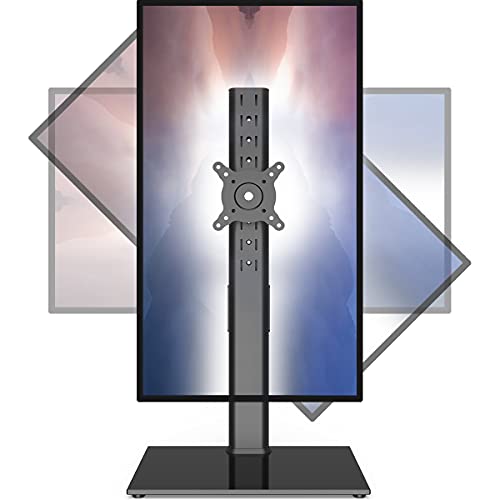
The Hemudu HT05B-003 is built for the biggest single monitors. With a 77-pound weight capacity, it can handle a 43-inch TV used as a monitor, a 34-inch curved ultrawide, or any heavy professional display. The tempered glass base is wider than most free-standing mounts, which distributes the weight and prevents tipping. There's no clamp arm, so it works on any desk surface including glass tops.
The rotation is 360 degrees, so you can flip a large monitor into portrait mode for a vertical setup. That's rare at this weight class; most heavy-duty mounts only rotate in 90-degree increments, or not at all. The tilt range is modest (25 degrees total), but enough to eliminate glare. The cable management runs through the center pole, keeping visible wires to a minimum. If you need a single-monitor vertical setup with a massive screen, and you don't want to drill a hole in your desk, this stand gives you the stability you need.
What you need to prioritize in a vertical monitor setup depends on whether you're buying a monitor that pivots on its own or a mount that turns any screen into a portrait. The best approach is to decide first if you want a single-portrait monitor (like for coding or reading) or a stacked pair (for multitasking with reference material). From there, these are the factors that separate a good setup from a frustrating one.
Some monitors come with a stand that rotates 90 degrees into portrait mode. That's the most convenient option: you just twist the screen and it clicks into place. The CRUA and Thinlerain monitors we recommend both have this feature. For monitors without a pivot stand, you need a VESA-compatible mount that offers 360-degree rotation. Every mount in this roundup rotates the screen fully, but you have to make sure the monitor's weight is within the mount's limit.
Weight capacity is the most overlooked spec in vertical setups. A standard 24-inch office monitor weighs about 8 to 12 pounds. A 27-inch gaming monitor can hit 15 to 18 pounds. A 34-inch curved ultrawide often exceeds 20 pounds. If your mount's max weight is 17.6 pounds per arm, you cannot safely mount a 34-inch ultrawide. Always check the monitor's weight with the stand removed (manufacturer specs list that as "without stand"). The VESA pattern must match: 75x75mm or 100x100mm is standard, but some large monitors use 200x200mm, which none of these mounts support without an adapter.
In a stacked dual-monitor setup, the top screen should be at or slightly below your seated eye level. That requires a column height of at least 24 inches from the desk to the top VESA plate. The MOUNT PRO with its 28-inch column gives the most headroom. The HUANUO extension model is also good at 25 inches. Shorter poles (around 20 inches) force the top monitor too low, causing neck strain. If you are taller than average, a taller column is a must.
Clamp mounts attach to the back edge of your desk and require a 2-3 inch overhang. They save desk space and are the most secure. Grommet mounts go through a pre-drilled cable hole in the desk and are just as stable. Free-standing mounts sit on the desktop on a wide base. They work on any desk surface, including glass, but they take up significant real estate. The Hemudu and VIVO free-standing stands need about 12×15 inches of desk space. If you have a small desk, a clamp mount is the better choice.
A vertical setup already looks busy with one monitor above another. Cables dangling down make it worse. The best mounts route cables through the center pole or have clips that hold them flat. The ARES WING and the Hemudu single stand have integrated cable channels. The budget HUANUO mount requires zip ties. If you care about a clean look, prioritize mounts with built-in routing.
Gas spring arms let you lift or lower the monitor with one hand. They are ideal if you switch between sitting and standing, or if you frequently adjust the screen angle. The MOUNT PRO Freelift and the ARES WING both use gas springs that are smooth and durable. Fixed arms (like the basic HUANUO and Hemudu) hold position with bolts. They are more stable once set but require tools to adjust. For a set-it-and-forget-it setup, fixed is fine. For flexibility, gas springs are worth the extra cost.
A vertical monitor setup rotates one or more screens into portrait orientation. It's popular for coding because it shows more lines of code, for reading long documents or PDFs without scrolling, for monitoring dashboards, and for stacking a secondary screen above a main display to save horizontal desk space.
Yes, as long as the monitor has a VESA mount and the mount you use supports 360-degree rotation. Some monitors also come with a stand that pivots to portrait. However, not all panels are designed for portrait use: some have bad viewing angles when tilted, and text can look less crisp if the pixel arrangement isn't optimized for vertical alignment.
For a stacked dual setup, a 24-inch or 27-inch monitor on top works well. If the bottom monitor is 32 inches or larger, the top monitor should be at least 24 inches to keep the proportions balanced. Avoid stacking two ultrawides unless you have a mount like the ARES WING that can handle the weight and height.
Not necessarily. Many curved monitors can be mounted in portrait, but the curve becomes horizontal, which can look odd for some users. Also, some mounts explicitly exclude extreme curves (1000R to 1800R) because the curvature interferes with the gas spring mechanism. Flat monitors are always safer for portrait stacking.
In Windows, go to Display Settings, scroll to Scale and Layout, and change the Display Orientation to Portrait or Portrait (flipped). In macOS, open System Settings > Displays, select the monitor, and choose 90° or 270° rotation. If your monitor has a native pivot, you may need to enable rotation in the on-screen display menu first.
Most dual monitor mounts only hold two screens. To add a third, you would need a separate mount for the bottom monitor or a specialized triple-stack mount. Some users place a laptop under the bottom monitor for a third screen.
Use a free-standing mount like the Hemudu or VIVO. Both sit on the desk on wide bases and do not require clamping. Alternatively, a grommet mount works if your desk has a pre-drilled cable hole.
For a single screen that doubles as a gaming display, the CRUA 24.5-inch Gaming Monitor is our top pick. It pivots smoothly, runs at 180Hz, and has an ergonomic stand that eliminates the need for a separate mount. If you're building a dual stacked setup, the HUANUO 17-32 Inch Dual Monitor Stand offers the best height adjustability for the money, and the MOUNT PRO Freelift is worth the upgrade if you want gas spring convenience. For ultrawide fans, the ARES WING Dual Monitor Arm can hold the biggest screens on the market. And if you need a free-standing solution that doesn't touch your desk edge, the VIVO Dual Monitor Desk Stand is the most stable option for two large monitors.
If you're still unsure, start with the monitor first: a native pivot display like the CRUA gives you a vertical setup with zero extra hardware. Then, if you need a second screen above it, add a stacked mount later. That way you build your vertical monitor setup one piece at a time, choosing the mount that fits the monitors you already own.
This article contains Amazon affiliate links. We may earn a small commission on qualifying purchases at no extra cost to you.


