Physical Address
304 North Cardinal St.
Dorchester Center, MA 02124
Physical Address
304 North Cardinal St.
Dorchester Center, MA 02124

Looking for the best LG curved monitors? We’ve picked 8 top models for gaming, productivity, and streaming, from 27-inch to 49-inch ultra-wide screens.
You know the feeling: you’re trying to juggle a spreadsheet, a Slack window, and a browser tab, or maybe you’re lining up a sniper shot and the action blurs just enough to miss. A flat monitor makes you choose — do you sit close and turn your head, or sacrifice edge-to-edge clarity? A curved screen solves that by wrapping the display around your natural field of view, reducing eye movement and pulling you into whatever you’re doing.
LG makes more curved monitors than any other brand, from cheap 1080p screens for the home office to 49-inch ultrawides that cost more than a used car. We sorted through the current lineup to find the best LG curved monitors for every kind of buyer. Whether you need a gaming monitor with a 240Hz refresh rate, a smart monitor that doubles as a TV, or a no-fuss productivity display with USB-C charging, there’s a curve for you.
TL;DR: The LG 34WR55QK-B is the best overall productivity monitor with its WQHD ultrawide, adjustable stand, and USB-C charging. The LG 34G630A-B is the top gaming pick, offering 240Hz and DisplayHDR 400. The LG 27GS60QC-B is the budget gaming champion: QHD, 180Hz, and a tight 1000R curve for under $200. The Samsung Odyssey G9 is the extreme choice for sim racers and multi-taskers who want a 49-inch Dual QHD monster.
| # | Product | Size / Resolution | Refresh Rate | Best For | Price |
|---|---|---|---|---|---|
| 1 | LG 34WR55QK-B | 34" WQHD (3440×1440) | 100Hz | Productivity, multitasking | $359.99 |
| 2 | LG 34G630A-B | 34" WQHD (3440×1440) | 240Hz | Competitive gaming (high speed) | $349.99 |
| 3 | LG 27GS60QC-B | 27" QHD (2560×1440) | 180Hz | Budget gaming, esports | $185.99 |
| 4 | LG 32G600A-B | 32" QHD (2560×1440) | 180Hz | 32-inch gaming, immersive shooters | $259.99 |
| 5 | LG 34SR63QA-W | 34" QHD (3440×1440) | 100Hz | Smart monitor with USB-C 65W PD | $394.85 |
| 6 | LG 34SR60QC-W | 34" QHD (3440×1440) | 100Hz | Smart monitor, streaming TV substitute | $349.99 |
| 7 | LG 32MR50C-B | 32" FHD (1920×1080) | 100Hz | Budget home office, casual use | $179.99 |
| 8 | Samsung Odyssey G9 G95C | 49" Dual QHD (5120×1440) | 240Hz | Sim racing, extreme ultrawide, HDR | $664.99 |
Prices shown are as of the time of writing and can change. Check the links for current pricing.
We looked at eight curved monitors from LG (and one Samsung that shares the same category) and judged them on the factors that actually matter once the box is on your desk.

This is the monitor most people should buy if they spend their days in spreadsheets, code editors, or creative apps. The 34-inch WQHD panel (3440×1440) gives you 34 percent more horizontal space than a standard 27-inch QHD display — enough to line up a Word doc, a browser, and a Slack window without scaling down to illegible sizes.
The 100Hz refresh rate isn’t high enough for competitive gaming, but it makes scrolling through documents and web pages feel fluid, not jerky. More importantly, the 34WR55QK-B includes USB-C with 65W power delivery. You plug one cable from your laptop and it charges while feeding video and data. That convenience alone justifies the price over cheaper ultrawides. The stand adjusts for height and tilt, which is still surprisingly rare at this price point. The three-side borderless design looks clean on any desk.
What holds it back? The 5ms response time means you’ll see a little ghosting in fast-moving games, and HDR10 support is basic — don’t expect true HDR performance. But as a pure work monitor, this is the pick.
Pros
Cons
Best for: Anyone who spends eight hours a day with multiple windows open and wants a single-cable laptop setup.
Check current price on Amazon →

If you want a gaming monitor that doubles as a great productivity screen, the 34G630A-B is the one. It shares the same 34-inch WQHD form factor as the 34WR55QK-B but swaps the 100Hz refresh for a blistering 240Hz and 1ms GtG response time. That combination makes a visible difference in shooters like Valorant or Overwatch — motion stays crisp, and you react a frame or two faster.
The panel covers 95% DCI-P3 and carries VESA DisplayHDR 400 certification. That’s not cinema-grade HDR, but it’s enough to make explosions and sunsets pop more than a standard sRGB screen can. FreeSync Premium eliminates tearing without adding stutter, even at high frame rates. The built-in speakers are usable for system sounds but not for music or dialogue — you’ll want headphones or desktop speakers.
The stand offers height, tilt, and swivel adjustments, a step up from the tilt-only stands on cheaper Ultragear models. USB-C with 15W power delivery is fine for charging a phone but won’t power a laptop — keep that in mind if you were hoping for a single-cable dock.
Pros
Cons
Best for: Gamers who need high refresh rates and want an ultrawide that also works for daily productivity.
Check current price on Amazon →

For under $190, the 27GS60QC-B delivers QHD resolution, a 180Hz refresh rate, and a 1000R curve — specs that would have cost $450 three years ago. This is the monitor for the gamer who wants a competitive edge without spending on a full rig upgrade.
The 27-inch size is the sweet spot for QHD: pixel density stays sharp, and you don’t need a $2,000 GPU to drive 180 frames per second in most games. The 1000R curve wraps around you tightly; at this size it feels natural, not gimmicky. The 1ms GtG response time keeps fast motion clean, and FreeSync works smoothly with both AMD and compatible NVIDIA cards (though LG doesn’t advertise G-Sync).
The tradeoffs are clear at this price: the stand only tilts, no height adjustment. Color coverage is 99% sRGB, which is fine for gaming but not for color-critical photo editing. And there are only two HDMI inputs and one DisplayPort — fine for a single PC plus a console, but tight if you have multiple sources.
Pros
Cons
Best for: Budget-conscious gamers who want QHD resolution and high refresh rates without the premium price.
Check current price on Amazon →
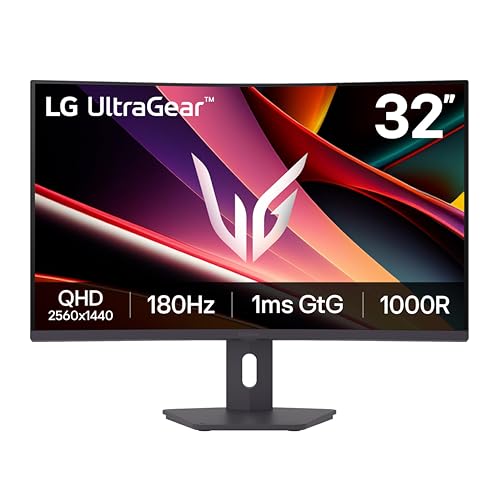
If 34-inch ultrawides feel too wide for your desk but a 27-inch monitor leaves you wanting more screen real estate, the 32G600A-B splits the difference. It’s a 32-inch QHD (2560×1440) display with a steep 1000R curve and a 180Hz refresh rate.
The panel uses VA technology (common in LG’s curved monitors), which means deep blacks and good contrast — better than IPS for dark scenes in games and movies. The 1ms GtG response time keeps ghosting minimal, and FreeSync works without issue. The stand is fully adjustable: height, tilt, and swivel. That’s a rare find at this $260 price point and makes a real difference in long sessions where neck strain creeps in.
The 32-inch QHD resolution gives you a larger image than a 27-inch QHD, but pixel density drops slightly (about 93 PPI vs 109 PPI). Text isn’t as razor-sharp as it would be on a 27-inch 4K monitor, but for gaming and general use it’s perfectly readable. HDR10 support is basic — don’t expect the brightness and local dimming of a premium HDR display.
Pros
Cons
Best for: Gamers who want a large curved screen with a good stand and don’t need ultrawide width.
Check current price on Amazon →

The 34SR63QA-W is one of two smart monitors in this roundup that run webOS. What sets it apart is the USB-C port with 65W power delivery — something its white sibling (34SR60QC-W) lacks. That single cable can charge your laptop, transmit video, and connect peripherals through the monitor’s USB hub. It’s a clean desk solution for remote workers who switch between a work laptop and personal machine.
Beyond connectivity, the 34-inch QHD ultrawide panel with 1800R curve is more relaxed than the 1000R gaming monitors. You notice the curve, but it doesn’t force you to sit dead center. The smart features let you stream Netflix, Prime Video, Disney+, and hundreds of free LG channels without a separate PC or streaming stick. Apple AirPlay 2 and HomeKit support make it easy to mirror an iPhone or Mac.
The downsides: 100Hz refresh rate is fine for office work and casual gaming but not for competitive titles. The built-in speakers are adequate for TV shows but lack bass for music. The white finish and thin stand look elegant but the stand only tilts — no height adjustment.
Pros
Cons
Best for: Remote workers and students who want a hub-like monitor that can also stream TV in a bedroom or dorm.
Check current price on Amazon →

The 34SR60QC-W is essentially the same monitor as the 34SR63QA-W but without the USB-C port. It still has two HDMI inputs, three USB ports, and full webOS smart functionality. If your laptop doesn’t support USB-C video or you connect via HDMI anyway, this saves you about $45.
The QHD 3440×1440 resolution on a 34-inch 1800R curved screen is the same panorama as its sibling. You get the 34 percent wider view than a 16:9 monitor, which makes a huge difference when multitasking. Smart features are identical: Netflix, Prime Video, Apple TV app, Disney+, and over 300 free LG channels. AirPlay 2 works for wireless mirroring from Apple devices.
The catch: without USB-C, this monitor can’t charge your laptop or serve as a docking station. If you want that single-cable convenience, the 34SR63QA-W is a better pick. Otherwise, this is the smarter value for someone who already has a good docking setup.
Pros
Cons
Best for: Users who want a smart monitor for streaming and productivity but don’t need laptop charging via USB-C.
Check current price on Amazon →
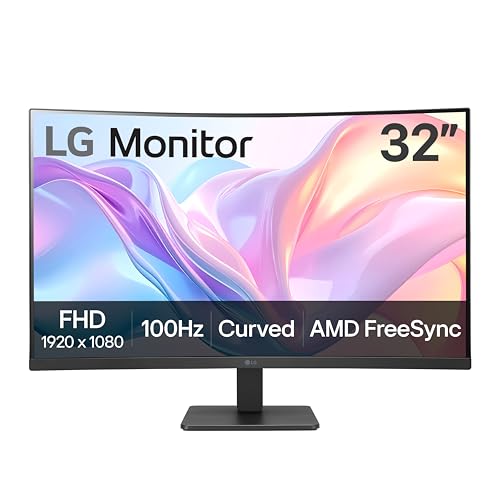
At $180, the 32MR50C-B is the cheapest curved monitor in this list by a wide margin. It’s a 32-inch VA panel with 1920×1080 resolution and a 100Hz refresh rate. If your budget is tight and you need a big screen for basic office work, web browsing, and the occasional YouTube video, this does the job.
The 100Hz refresh rate makes scrolling feel smoother than a standard 60Hz office monitor. FreeSync helps reduce tearing if you do light gaming. The VA panel delivers decent contrast, which helps in dark scenes. The Black Stabilizer feature brightens shadows for games, and Reader Mode cuts blue light for long reading sessions.
But the limitations are real. A 32-inch 1080p screen has a pixel density of about 69 PPI — you can see individual pixels at normal viewing distance. Text looks blocky compared to any QHD display. The stand only tilts, and the bezels are thicker than on more expensive models. This is a monitor for someone who values screen size over sharpness, not for anyone doing text-heavy work or photo editing.
Pros
Cons
Best for: Budget buyers who want a large curved screen for casual use and aren’t bothered by low pixel density.
Check current price on Amazon →

The Samsung Odyssey G9 is the B-52 of monitors: huge, overpowered, and mission-specific. Its 49-inch screen with Dual QHD resolution (5120×1440) is equivalent to two 27-inch QHD monitors side by side, but without a bezel down the middle. The 1000R curve wraps all the way around your peripheral vision, putting you inside the game world.
The specs are extreme: 240Hz refresh rate, 1ms GtG response time, DisplayHDR 1000 with 1000 nits peak brightness, and a 1,000,000:1 contrast ratio. AMD FreeSync Premium Pro ensures tear-free, low-latency gameplay even at high frame rates. The CoreSync lighting on the back projects the on-screen colors onto the wall behind the monitor, adding to the immersion.
This monitor requires serious desk real estate — it’s 45 inches wide — and a powerful GPU to push 5120×1440 at high frame rates. For sim racers, flight simmers, and productivity power users who want to replace a multi-monitor setup, the G9 is unmatched. For everyone else, it’s overkill and over budget.
Pros
Cons
Best for: Sim racers, flight simmers, and anyone who needs an ultrawide for productivity and wants the most immersive gaming experience available.
Check current price on Amazon →
Picking the right curved monitor depends more on your desk, your computer, and your daily tasks than on any single spec. Here are the factors that matter most.
The curve radius (measured in millimeters) tells you how tightly the screen wraps around. A 1000R curve is the most aggressive — it forms a circle with a 1-meter radius, which matches the natural curvature of the human field of view. LG uses 1000R on its gaming Ultragear monitors and the Samsung Odyssey G9. You sit at the center and the edges of the screen are equidistant from your eyes, reducing eye strain and making the image feel edge-to-edge sharp.
A 1800R curve is gentler. It’s common on productivity and smart monitors because it looks less distorted when viewed from an angle. If you share your screen with a colleague or stand up and walk around, 1800R is more forgiving. 1500R is a middle ground. For single-user desktop use, 1000R is the most immersive; for shared setups or general use, 1800R is more practical.
A 27-inch monitor at QHD (2560×1440) is the sweet spot for sharpness and GPU demand. At 32 inches, QHD still looks good (about 93 PPI) but text won’t be as crisp as on a 27-inch 4K panel. The 34-inch WQHD panels (3440×1440) have a similar pixel density to 27-inch QHD because they’re wider, not taller. They’re ideal for productivity because you see more horizontal content.
1080p on a 32-inch screen (like the 32MR50C-B) is noticeably soft. You can feel the jagged edges of fonts. It’s acceptable for watching video or casual gaming but not for reading documents or editing photos for hours.
If you play competitive shooters, racing games, or fast-paced action titles, prioritize refresh rate. 180Hz is a huge step up from 60Hz; 240Hz is even smoother, though the improvement from 180 to 240 is smaller than from 60 to 120. Response time under 5ms is fine for most players; 1ms GtG eliminates ghosting entirely. For productivity and casual gaming, 100Hz is enough to make the desktop feel fluid.
LG’s smart monitors run webOS and can stream apps without a PC. That’s convenient if you want a monitor that also serves as a bedroom TV or a kitchen display. But the smart interface takes a few seconds to boot, and input switching can be slower than a dedicated monitor. If you always use a computer, the smart features are unnecessary. If you want a hybrid device that works both as a monitor and a streaming TV, they’re worth considering.
USB-C with 65W power delivery is the defining feature of the 34WR55QK-B and 34SR63QA-W. It turns the monitor into a docking station: connect one cable to your laptop and you get video, audio, data, and charging. Without it, you need a separate power adapter and at least one video cable. For laptop users, this is the most important feature after panel quality.
Height adjustment is rare on budget monitors but essential for proper ergonomics. The 34WR55QK-B, 34G630A-B, 32G600A-B, and Odyssey G9 all offer height, tilt, and swivel. The 27GS60QC-B, 32MR50C-B, and the two smart monitors do not. If your desk and chair setup isn’t perfectly matched, a height-adjustable stand saves your neck. VESA mount compatibility (100x100mm) is a fallback but adds the cost of an arm.
Yes, especially the Ultragear line. Models like the 27GS60QC-B and 34G630A-B offer high refresh rates (180Hz to 240Hz), 1ms response times, and FreeSync support. The 1000R curve on many models adds immersion. For casual gaming, even the 100Hz smart monitors work fine.
Absolutely. The 34WR55QK-B is purpose-built for productivity, and the 21:9 aspect ratio lets you see three or four windows side by side. The curve reduces eye movement and can reduce strain in long sessions. Just make sure you get a model with height adjustment and USB-C if you use a laptop.
34-inch ultrawide (3440×1440) is the sweet spot. It fits two full-size windows without scaling down and doesn’t require a massive desk. A 49-inch super-ultrawide like the Odyssey G9 is better for three or more windows but needs a deep desk and a powerful PC.
It depends on the screen size. On a 27-inch monitor, 1000R feels natural. On a 34-inch or 49-inch monitor, it wraps around you noticeably but remains comfortable for a single user. If you share your screen with others or view it from off angles, a gentler curve like 1800R is better.
Most of these monitors have VESA mount support (100x100mm or 75x75mm). Check the product details before buying. The 32MR50C-B, for example, doesn’t list VESA compatibility in the data. The Odyssey G9 is VESA compatible but requires a heavy-duty mount rated for its 23-pound weight.
They can, but it depends on the panel. The 34WR55QK-B and 34G630A-B cover 99% sRGB and 95% DCI-P3 respectively, which is fine for most creative work. However, IPS panels (not used in these LG curved models) generally offer wider viewing angles and better color consistency than VA panels. For professional photo editing, a flat IPS monitor may still be better.
At least 30 inches (76 cm) from the back of the desk to the front edge. The Odyssey G9 is 16.6 inches deep with the stand, and you need room for a keyboard and mouse in front. If your desk is only 24 inches deep, the screen will feel uncomfortably close.
The LG 34WR55QK-B is the one we’d recommend first for most people. It balances productivity features (USB-C 65W, height-adjustable stand, WQHD resolution) with a price that undercuts most ultrawide competitors. If gaming is your primary use, the LG 34G630A-B delivers 240Hz and DisplayHDR 400 for the same money as the 34WR55QK-B, making it the better choice for enthusiasts. Budget gamers should go straight to the LG 27GS60QC-B: QHD, 180Hz, and a 1ms response for under $190 is hard to beat.
For buyers who want a monitor that also acts as a TV, the LG 34SR63QA-W adds USB-C charging and webOS streaming in a clean white design. And if you need the ultimate immersive experience and have the desk space, the Samsung Odyssey G9 is the clear winner.
The best LG curved monitor is the one that matches your desk, your computer, and your daily routine. Start with your budget and your need for USB-C — the rest falls into place.
This article contains Amazon affiliate links. We may earn a small commission on qualifying purchases at no extra cost to you.


