Physical Address
304 North Cardinal St.
Dorchester Center, MA 02124
Physical Address
304 North Cardinal St.
Dorchester Center, MA 02124

Find the 10 best external GPUs for laptop in 2026. From premium RTX 5090 docks to budget adapters, our guide helps you pick the right eGPU for gaming or creative work.
You buy a laptop for its portability, but somewhere between the second year and that new AAA game, the integrated graphics start showing their age. Or maybe you need to render 4K footage on your work laptop without waiting for the spinning beach ball. An external GPU (eGPU) offers a way out. It turns your thin-and-light into a desktop-replacement gaming rig or workstation, letting you leave the heavy GPU behind when you hit the road.
The challenge is that the eGPU ecosystem is fragmented. You can spend $3,500 on a complete system with an RTX 5090, or $25 on a cable that lets you MacGyver a desktop card onto your laptop with varying degrees of stability. The best external GPUs for laptop users cover that full spectrum, and the right pick depends entirely on your hardware, your patience, and your budget. Here are the ten most compelling options we found, from all-in-one units to bare-bones enclosures to a simple riser cable.
TL;DR: The ASUS ROG XG Mobile (2025) with RTX 5090 is the fastest and most portable way to add desktop-class graphics to a laptop, but it costs more than many desktops. The BOSGAME GVP 7600M XT is the best all-in-one value at a third the price, with a capable AMD GPU built in. The Razer Core X V2 is the pick for anyone who already owns a desktop GPU and wants a premium enclosure with Thunderbolt 5. The OwlTree PCIe 4.0 OCuLink Dock is the cheapest way to get near-native PCIe performance if your laptop has the right port.
| # | Product | Type | Connection | Price | Best for |
|---|---|---|---|---|---|
| 1 | ASUS ROG XG Mobile (2025) | Integrated RTX 5090 | Thunderbolt 5 (120 Gbps) | $3,469.97 | Gamers and creators who want zero-compromise performance on the go |
| 2 | Razer Core X V2 | Enclosure (no GPU) | Thunderbolt 4/5, USB4 | $349.99 | Users who already own a desktop GPU and want a quality enclosure |
| 3 | OwlTree PCIe 3.0 eGPU Dock (TB4) | Dock (no GPU) | Thunderbolt 3/4, USB4 | $96.99 | Budget buyers with a Thunderbolt laptop and a low-power GPU |
| 4 | BOSGAME GVP 7600M XT (8GB) | Integrated RX 7600M XT | Thunderbolt 3/4, OCuLink | $788.95 | Users who want a complete eGPU system without assembling anything |
| 5 | OwlTree PCIe 4.0 OCuLink Dock | Dock (no GPU) | OCuLink (64 Gbps) | $95.99 | OCuLink-equipped laptop owners on a strict budget |
| 6 | AOOSTAR AG01 eGPU Dock | Dock (no GPU) | OCuLink | $179.00 | OCuLink users who want a built-in 800W power supply |
| 7 | BOSGAME GVP7600 eGPU Dock (RX 7600M XT) | Integrated RX 7600M XT | OCuLink, Thunderbolt 3 | $659.00 | The best value integrated AMD eGPU for OCuLink laptops |
| 8 | OwlTree PCIe 5.0 M.2 to PCIe Dock | Dock (no GPU) | M.2 NVMe (128 Gbps) | $109.99 | Tinkerers who want to tap direct PCIe through an unused M.2 slot |
| 9 | MOLUCKFU PCIe 3.0 Riser Cable | Adapter Cable | PCIe 3.0 x16 (via USB) | $24.60 | Ultra-budget upgrades for older laptops with limited connectivity |
| 10 | GODLIY Compact eGPU Enclosure | Enclosure (no GPU) | Thunderbolt 3/4, USB4 | $299.99 | Travelers who need a small, portable enclosure with a carrying case |
Prices shown reflect the time of writing and may change. Always check the current price on Amazon.
External GPU connection matters more than the GPU itself. Thunderbolt 4 and Thunderbolt 5 offer universal compatibility but cap performance at around 80-90% of a desktop card. OCuLink delivers near-native PCIe bandwidth but requires a specific port on your laptop. M.2 adapters can be fast but involve opening your laptop. We prioritized compatibility first, then value and build quality.

The ASUS ROG XG Mobile (2025) is the most powerful external GPU you can buy for a laptop, and it's not even close. It pairs an NVIDIA GeForce RTX 5090 laptop GPU with 24GB of GDDR7 VRAM and a Thunderbolt 5 interface that delivers a staggering 120 Gbps of bandwidth. That's enough to drive three 4K displays at 144 Hz simultaneously or an 8K monitor for video editing. The whole unit weighs just 2.09 pounds — about the same as a 13-inch tablet — and fits in a small bag. It's a complete system: plug the included Thunderbolt 5 cable into any compatible laptop (or desktop) and you get desktop-class ray tracing and AI performance.
The build tells you this is a premium product. The vapor chamber cooling covers 150% more surface area than a standard heatpipe design, and the MOSFET design shaves off 150 grams while still delivering a 330W power profile. Customizable RGB lighting shines through the semi-transparent case, and ASUS's Aura Sync ties it into a full ROG ecosystem. The catch is obvious: at $3,469.97, it costs more than a top-tier gaming desktop. It only works with Thunderbolt 5 laptops (or Thunderbolt 4 with reduced bandwidth), and you can't upgrade the GPU later. For someone who needs maximum graphics power in a portable form factor — a traveling creative pro or a LAN party regular — this is unmatched. For everyone else, it's overkill.
Pros:
Cons:
Best for: Professionals and enthusiasts who need desktop-class graphics on the road and are willing to pay a premium for a compact, plug-and-play solution.
Check current price on Amazon →
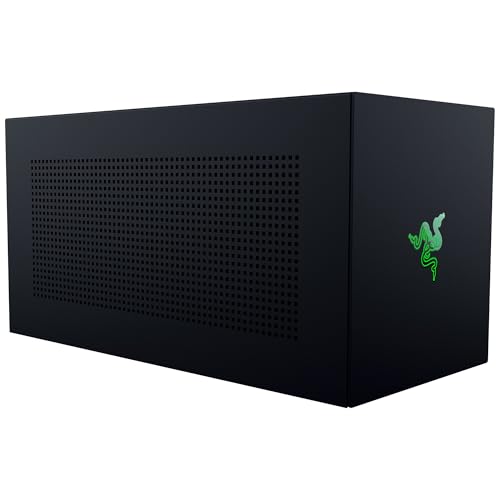
The Razer Core X V2 is the enclosure to buy if you already own a desktop GPU or want the flexibility to upgrade later. It supports Thunderbolt 5 (up to 80 Gbps), Thunderbolt 4, and USB4, making it compatible with virtually every modern Windows laptop and many gaming handhelds. The chassis is wide enough to accommodate 4-slot graphics cards — including massive RTX 4090s — and the tool-free thumbscrew design lets you swap cards in seconds. A built-in 120mm fan automatically adjusts speed based on load, and you can customize the fan curve through Razer's software.
The trade-off is that you have to supply your own GPU and power supply. That means a separate purchase of both a card and an ATX PSU (not included), which pushes the total cost higher than the $349.99 enclosure price suggests. But if you're upgrading your desktop and have a spare GPU, the Core X V2 is a fantastic way to breathe new life into an older laptop. The vented steel chassis feels solid, and the 140W Power Delivery over USB-C means it can charge your laptop while driving the GPU — useful for single-cable setups. Compatibility note: Macs with M1 or newer chips do not support eGPUs, so this is Windows-only.
Pros:
Cons:
Best for: PC gamers and creators who already own a desktop GPU and want a premium enclosure that future-proofs with Thunderbolt 5.
Check current price on Amazon →
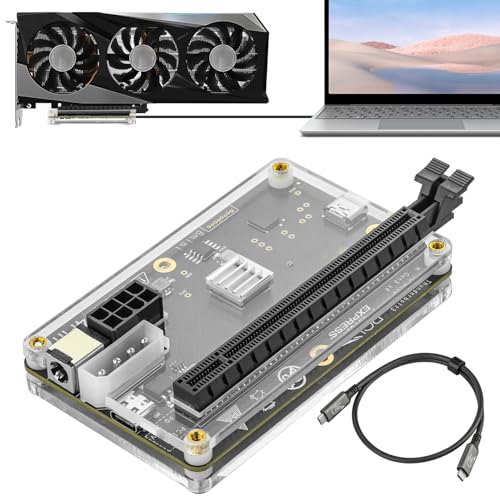
Not everyone needs an RTX 5090. If you have an older Thunderbolt 3 or USB4 laptop and a modest GPU from a previous build, the OwlTree PCIe 3.0 eGPU Dock offers the cheapest way to get an external GPU working over a Thunderbolt connection. At $96.99, it costs less than a good gaming mouse. The dock uses the JHL6340 controller, which delivers around 22 Gbps of real-world throughput — enough for older games, video editing, and creative apps. It supports Thunderbolt 3, 4, and USB4, and comes with a standard Thunderbolt 4 cable.
The clever part is the power flexibility. You can power the dock via a 4+4-pin CPU connector from your PSU, a Molex connector, a PD 3.0 adapter (up to 60W), or a DC 5521 barrel jack (up to 120W). This means you can reuse an old power supply or buy a cheap one, keeping the total system cost low. The downsides are the limited bandwidth — newer cards like an RTX 4070 would be heavily bottlenecked — and the need to provide your own GPU and PSU. Also, it doesn't work with Intel ARC GPUs (as noted). For someone pairing a GTX 1060 or RX 580 with an older laptop, this is a perfectly sensible and affordable solution.
Pros:
Cons:
Best for: Budget-minded users with a spare lower-power GPU who want to test the eGPU waters without a big investment.
Check current price on Amazon →

The BOSGAME GVP 7600M XT is an all-in-one external GPU that includes the graphics card and the enclosure in one purchase. It's built around AMD's Radeon RX 7600M XT with 8GB of GDDR6 memory on the RDNA 3 architecture, which delivers performance roughly equivalent to an RTX 4050 laptop GPU — enough for solid 1080p gaming and 1440p at medium settings. The unit weighs just 1.92 pounds and is built into a sleek aluminum alloy chassis that looks professional on any desk.
What sets this apart from other integrated eGPUs is its versatility. It supports Thunderbolt 3, Thunderbolt 4, USB 4, and OCuLink connections, so it works with a wider range of laptops than OCuLink-only docks. It also functions as a USB-C hub with two HDMI 2.1 ports (4K at 60 Hz), two DisplayPort 2.0 ports (4K at 120 Hz), two USB-A 3.2 ports, and an RJ45 Ethernet port. There's even an M.2 2280 slot for up to 4TB of additional storage. A "Turbo" button lets you push the GPU from its default 100W TDP to 120W for extra performance when needed. The price of $788.95 is high for this level of GPU, but you pay for the convenience of a complete system that just works. If you value portability and simplicity over raw horsepower, this is a compelling option.
Pros:
Cons:
Best for: Users who want a complete, portable eGPU setup without sourcing their own card, and who prioritize low weight and multiple ports over maximum frame rates.
Check current price on Amazon →

If your laptop has an OCuLink port (the SFF-8612 standard found on many 2024 and 2025 gaming laptops and mini PCs), the OwlTree PCIe 4.0 x4 OCuLink Dock offers a remarkably efficient path to external graphics. At $95.99, it's nearly as cheap as the Thunderbolt dock above, but OCuLink delivers 64 Gbps bandwidth — nearly three times the throughput of the Thunderbolt 3 equivalent and closer to native PCIe performance. That means less GPU bottleneck and higher frame rates in demanding titles.
The dock is a bare-bones design: it provides an SFF-8612 female slot that connects to your laptop via an included SFF-8611 male-to-male cable (50 cm). You supply your own GPU and a standard ATX power supply, which mounts with screws on top or bottom. The gold-plated PCB contacts and multi-status LEDs are nice touches. The cable is ultra-thin and flexible, reducing strain on your laptop's port. A critical note: OCuLink does not support hot-plugging. You must shut down the laptop before connecting or disconnecting. This is a minor inconvenience for the big bandwidth advantage. This dock is perfect for someone with a compatible laptop who wants to use a high-end desktop GPU without the Thunderbolt overhead.
Pros:
Cons:
Best for: Owners of OCuLink-equipped laptops (like certain Lenovo Legion Go and Mini PC models) who want maximum GPU performance for the lowest enclosure cost.
Check current price on Amazon →

The AOOSTAR AG01 is an OCuLink-based eGPU dock that addresses one of the biggest pain points of budget enclosures: you need a separate power supply. AOOSTAR includes a built-in Huntkey 800W ATX power supply, which can handle most desktop GPUs up to 600W draw. That includes everything from an RTX 4070 to a 7900 XTX. The dock itself is an open-metal frame design with an aluminum center frame, measuring just 8.86 x 4.33 x 2.36 inches and weighing 3.3 pounds. It's small enough to sit on a desk next to your laptop, and the open design provides plenty of airflow.
The AG01 is compatible with any graphics board that uses the OCuLink interface. It includes two 8-pin PCIe power connectors for the GPU. It works with both Windows and Mac (though Mac support is limited to Intel models). The OCuLink connection provides 64 Gbps bandwidth via PCIe 4.0 x4. Note that this dock only works with devices that have an OCuLink port (or TGX, as found on some Lenovo ThinkBooks). The built-in 800W PSU means you don't need to buy a separate PSU, which saves $50-$100. At $179, it's a great value for an OCuLink dock with a high-quality PSU.
Pros:
Cons:
Best for: OCuLink laptop owners who want a complete enclosure with a robust power supply and don't want to buy a separate PSU.
Check current price on Amazon →

This BOSGAME GVP7600 is the more affordable sibling of the integrated BOSGAME we covered earlier. It uses the same AMD Radeon RX 7600M XT GPU with 8GB GDDR6, but it's configured for OCuLink as the primary connection, with Thunderbolt 3 compatibility as a backup. The price is $659, making it the cheapest integrated eGPU on this list. The performance is solid for the price: RDNA 3 architecture with clock speeds up to 2300 MHz means you can play most modern games at 1080p high settings or 1440p medium. It's roughly equivalent to an RTX 4050 laptop GPU.
The compact enclosure measures about the size of a thick external hard drive and weighs just 1.7 pounds. It includes the same quad-display outputs as the more expensive model (2x HDMI 2.1 at 4K 60Hz, 2x DP 2.0 at 4K 120Hz) and an OCuLink port plus USB4 for data and display. The trade-off is that the Gigabit Ethernet and M.2 slot are omitted, which keeps the price down. This is the best option for someone who wants an all-in-one eGPU solution at the lowest price point, especially if their laptop has an OCuLink port to take full advantage of the connection.
Pros:
Cons:
Best for: Budget-conscious gamers who want an all-in-one eGPU that's ready to use out of the box without assembling separate components.
Check current price on Amazon →

The OwlTree PCIe 5.0 M.2 to PCIe eGPU Dock takes a different approach: it connects directly to an unused M.2 NVMe slot inside your laptop or mini PC. This bypasses Thunderbolt and OCuLink entirely, offering theoretical bandwidth of 128 Gbps — twice that of OCuLink and more than either Thunderbolt 4 or 5 in practice. The dock comes with a 50 cm flexible cable that routes from the M.2 slot to a PCIe x16 slot for your desktop GPU. You provide a standard ATX power supply (500W or higher) and the GPU.
This is the ultimate solution for performance on a non-Thunderbolt laptop, but it has serious caveats. First, you need an available M.2 NVMe slot (not SATA, not Wi-Fi). Many laptops have only one M.2 slot, and it's occupied by the boot drive. If you can sacrifice one, or if your laptop has two slots, this works well. The cable is thin and flexible, but you still need to route it out of the laptop case, which often means leaving the bottom panel off or cutting a notch. This isn't for the faint of heart. The dock itself supports the latest PCIe 5.0 GPUs like the RTX 50 series and AMD RX 90xx series, making it future-proof. If you're comfortable with the physical modding, this offers the best latency and bandwidth of any eGPU option.
Pros:
Cons:
Best for: Advanced users who want the absolute highest eGPU performance and are willing to modify their laptop chassis to run an M.2 cable.
Check current price on Amazon →

At $24.60, the MOLUCKFU Graphics Card Adapter Cable is the cheapest way to connect a desktop GPU to a laptop, but it comes with significant limitations. This is a bare PCIe 3.0 riser cable that connects to your laptop via a USB interface (likely USB 3.0 or similar, though the description is vague). It measures just 5 x 1.77 x 0.78 inches and weighs 115 grams, making it extremely portable. The idea is that you can plug in an external GPU to accelerate gaming or multimedia tasks without internal modifications.
In practice, this kind of adapter typically uses a USB bridge chip that severely limits bandwidth — we're talking PCIe 2.0 x1 or similar effective speeds. That means it's only useful for very lightweight tasks: basic 2D acceleration, older games, or maybe GPU compute for machine learning workloads that aren't bandwidth-sensitive. For modern gaming or video editing, the bottleneck will be crippling. It also requires a power supply for the GPU (not included). This is a novelty for tinkerers who want to experiment with eGPUs on laptops that lack Thunderbolt or OCuLink, but for serious use, it's not recommended. It's listed here for completeness and because it answers the question "what's the absolute cheapest way to try an eGPU?"
Pros:
Cons:
Best for: Users who want to experiment with eGPU on an old laptop at minimal cost, or for non-gaming GPU compute tasks like folding@home.
Check current price on Amazon →

The GODLIY Compact eGPU Enclosure is designed for maximum portability. It measures just 8.5 x 6.3 x 3 inches and includes a custom carrying case. The anodized aluminum chassis is lightweight yet sturdy, and the included 240W external power supply is small enough to fit in the case alongside the enclosure. It supports Thunderbolt 3, Thunderbolt 4, and USB4 at 40 Gbps, with PCIe 3.0 x16 data transfer. It can fit graphics cards up to 205mm long, 150mm tall, and 55mm wide — enough for most single- and dual-fan cards.
A unique feature is the dual Thunderbolt ports: one provides 85W Power Delivery to the host laptop, the other provides 15W for a secondary device. There's also a single DP port for direct video output. The enclosure works with Windows 10/11 and Linux, but not Apple Silicon Macs. The price of $299.99 is reasonable for a Thunderbolt enclosure with a 240W PSU and a carrying case. The main compromise is the size limitation: you can't fit large triple-slot cards like an RTX 4090. But for a compact build with a card like an RTX 4060 or RX 7600, this is a very neat solution. The included carrying case makes it easy to pack in a backpack for travel.
Pros:
Cons:
Best for: Travelers who need a portable eGPU solution for a small form factor desktop GPU, and want a complete kit with a case and PSU.
Check current price on Amazon →
Choosing an external GPU for laptop involves more than just picking the fastest card. The interface, the enclosure design, and your laptop's compatibility all determine whether you get a smooth gaming experience or a frustrating battle with driver issues. Here are the most important factors to weigh.
The connection between your laptop and the eGPU is the single biggest variable in performance. Thunderbolt 4 is the most common, offering 40 Gbps bandwidth, which translates to about 80-90% of a desktop GPU's performance in games with some CPU overhead. Thunderbolt 5 boosts that to 80 Gbps (120 Gbps with asymmetric mode on the ASUS unit), reducing the gap to less than 5%. OCuLink (SFF-8612) provides 64 Gbps via PCIe 4.0 x4 with much lower latency, often matching desktop performance. M.2 NVMe connections bypass the external controller entirely, offering the best bandwidth but requiring internal laptop modifications.
If your laptop has Thunderbolt 4, any Thunderbolt enclosure will work, but you'll get the best results with a mid-range GPU (RTX 4060 or RX 7600) rather than a high-end card, because the bandwidth limit hurts faster GPUs more. OCuLink is ideal for high-end cards but is only available on a few laptops: Lenovo Legion Go, some ASUS ROG Flow models, and select Mini PCs. M.2 is for tinkerers only.
Desktop GPUs come in various sizes. Most enclosures accommodate dual-slot cards up to 300mm long. The Razer Core X V2 and AOOSTAR AG01 can hold larger cards. The GODLIY Compact is limited to smaller cards (under 205mm). Before buying an enclosure, measure your target GPU. Power requirements matter too: a card like the RTX 4090 draws 450W and needs a 850W+ PSU. The AOOSTAR AG01 comes with an 800W unit, while the Razer Core X requires your own. Budget docks like the OwlTree OCuLink accept standard ATX PSUs but don't include one.
An enclosure (no GPU included) gives you flexibility: upgrade the card later, swap between different systems, or reuse a card you already own. This is the most cost-effective path if you have a spare GPU. An integrated eGPU (like the ASUS ROG XG Mobile or BOSGAME models) is simpler: you plug it in and it works. The downside is you're stuck with that GPU forever, and you pay a premium for the convenience. For most people, buying an enclosure and a mid-range GPU separately gives the best value over time.
When a GPU runs at full load inside an enclosure, heat buildup is a real issue. The best enclosures — Razer Core X, the ASUS XG Mobile's vapor chamber — actively cool both the GPU and the power supply. Open-frame docks like the AOOSTAR AG01 rely on the GPU's own fans, which works well but can be noisy. Compact enclosures have less airflow and may throttle high-power cards. If you plan to run demanding workloads for hours, prioritize enclosures with active ventilation and good reviews for thermal performance.
External GPUs on Windows generally work well once you install the correct NVIDIA or AMD drivers. You may need to restart when you plug in the eGPU. On Mac, eGPU support was killed with Apple Silicon; only Intel Macs with Thunderbolt 3 work. Linux has experimental eGPU support. Also note that some docks specifically say they don't work with Intel ARC GPUs. Always check compatibility before buying.
Not always. If your laptop has an OCuLink or TGX port, you can use an OCuLink dock. Some advanced users also use M.2 to PCIe adapters. But for the vast majority of laptops, Thunderbolt 3, 4, or USB4 is required for eGPU support. If your laptop lacks all of these, the only option is a USB-based riser cable like the MOLUCKFU, which offers very low performance.
Most Windows laptops with a Thunderbolt 3 or newer port can run an eGPU, but there are exceptions. Some ultrabooks disable the dGPU when an eGPU is connected. Check your laptop manufacturer's support documentation. Also, any laptop with an Apple M1 or M2 chip does not support eGPUs at all.
With Thunderbolt 4, you lose about 10-20% compared to the same GPU in a desktop PCIe 4.0 x16 slot, mostly in CPU-bound scenarios. Thunderbolt 5 cuts that loss to 5-10%. OCuLink and M.2 connections can achieve near-native performance, with losses under 5%. The faster the GPU, the more bandwidth matters.
Yes. GPU-accelerated tasks like video encoding, rendering, and machine learning benefit directly from eGPU bandwidth. For creative workloads, the performance loss is often smaller than in games because these tasks are less sensitive to latency. An eGPU can transform a thin laptop into a capable workstation for programs like DaVinci Resolve, Blender, or Premiere Pro.
Yes, if you buy an enclosure (without an integrated GPU). You can swap the graphics card whenever you want, just like in a desktop. The only limitation is physical size and power: your new GPU must fit in the enclosure and be within the PSU's capability. This is the main reason to choose an enclosure over an integrated eGPU.
For $700+ you can build a decent desktop, but an eGPU gives you the flexibility to have a powerful laptop for work and a full gaming experience when you dock at home. If you need the portability of a laptop for daily use, an eGPU makes more sense than buying a separate desktop. However, for pure price-to-performance, a desktop still wins.
All OCuLink docks come with the required SFF-8611 male-to-male cable. The cable is thin and flexible but must be handled carefully. OCuLink cables are not hot-pluggable, so you must turn off the laptop and the dock power before connecting or disconnecting.
The best external GPU for your laptop depends entirely on your hardware and your willingness to tinker. For those with a Thunderbolt 5 laptop and unlimited budget, the ASUS ROG XG Mobile (2025) is the fastest, most portable integrated solution on the market. It delivers desktop-class performance in a package smaller than a tablet. For everyone else, the Razer Core X V2 is the best enclosure: it's well-built, supports the latest Thunderbolt 5, and fits even massive GPUs. If you want an all-in-one without buying a separate card, the BOSGAME GVP7600 with RX 7600M XT offers good 1080p performance at the lowest integrated price.
Budget buyers with an OCuLink port should look at the AOOSTAR AG01 for its built-in high-wattage PSU, or the OwlTree OCuLink dock if you already have a PSU. The OwlTree M.2 NVMe dock is the speed king for those willing to open their laptop. And if you just want to dip a toe into eGPU territory for under $100, the OwlTree Thunderbolt 4 dock works with older cards and keeps costs minimal. Avoid the super-cheap USB riser cable unless you're experimenting for fun; the bottleneck is too severe for any real use.
No matter which path you choose, the key is matching the interface to your laptop and the performance tier to your expectations. The best external GPUs for laptop users aren't always the most expensive — they're the ones that integrate seamlessly into your workflow and give you back the desktop performance you thought you gave up when you bought a portable machine.
This article contains Amazon affiliate links. We may earn a small commission on qualifying purchases at no extra cost to you.


